
Orbit Store 1.7.0 (Beta)
A major update: Orbit gets a file manager, saved filters, and streaming game installs straight from your computer with Orbit Zero, saving space on your PS5. Vikingfile accounts now work too.
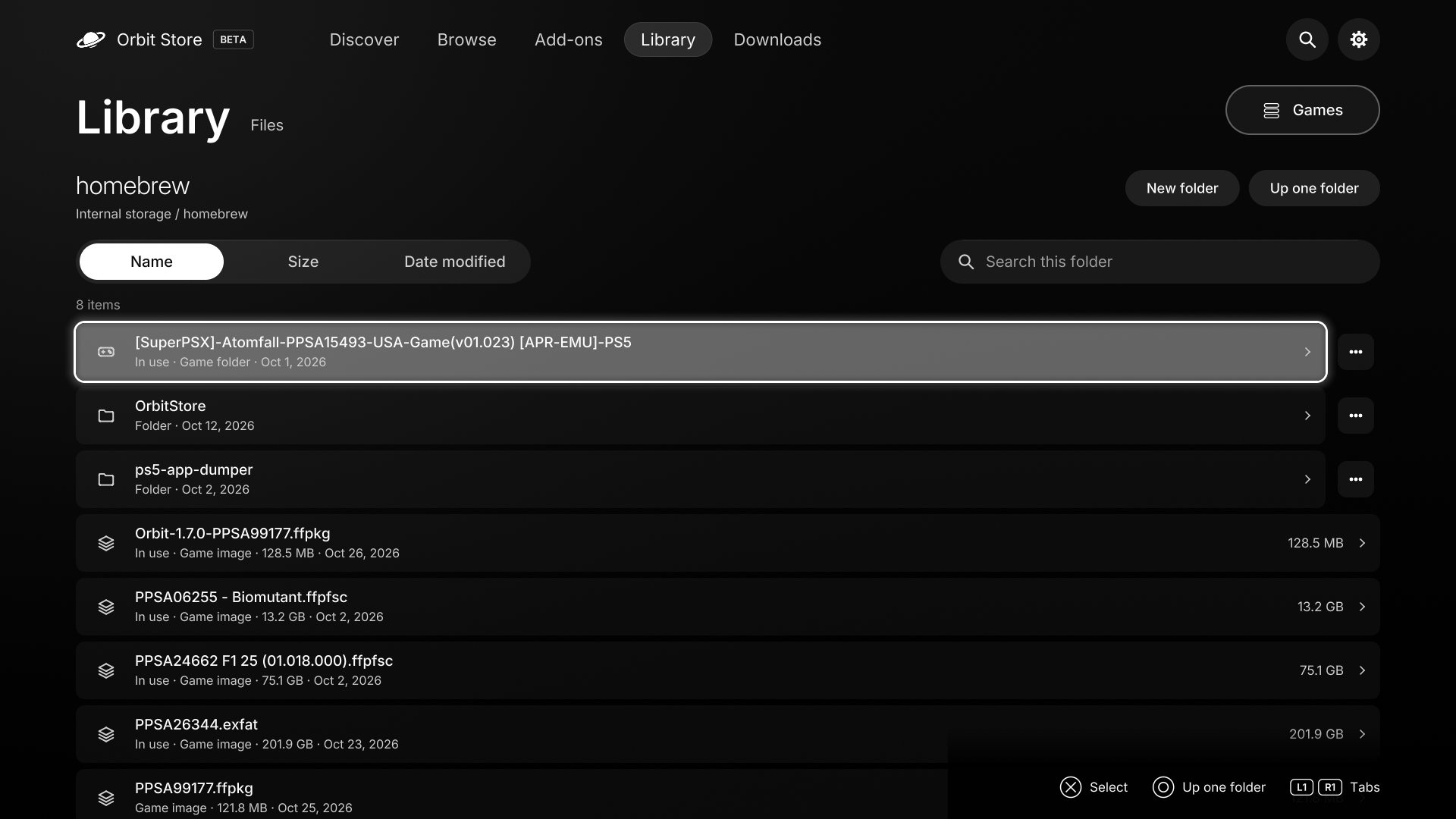
- File manager comes to Orbit. Open Library → Files to browse your PS5’s drives, copy or move files, rename, delete, unpack archives and install games.
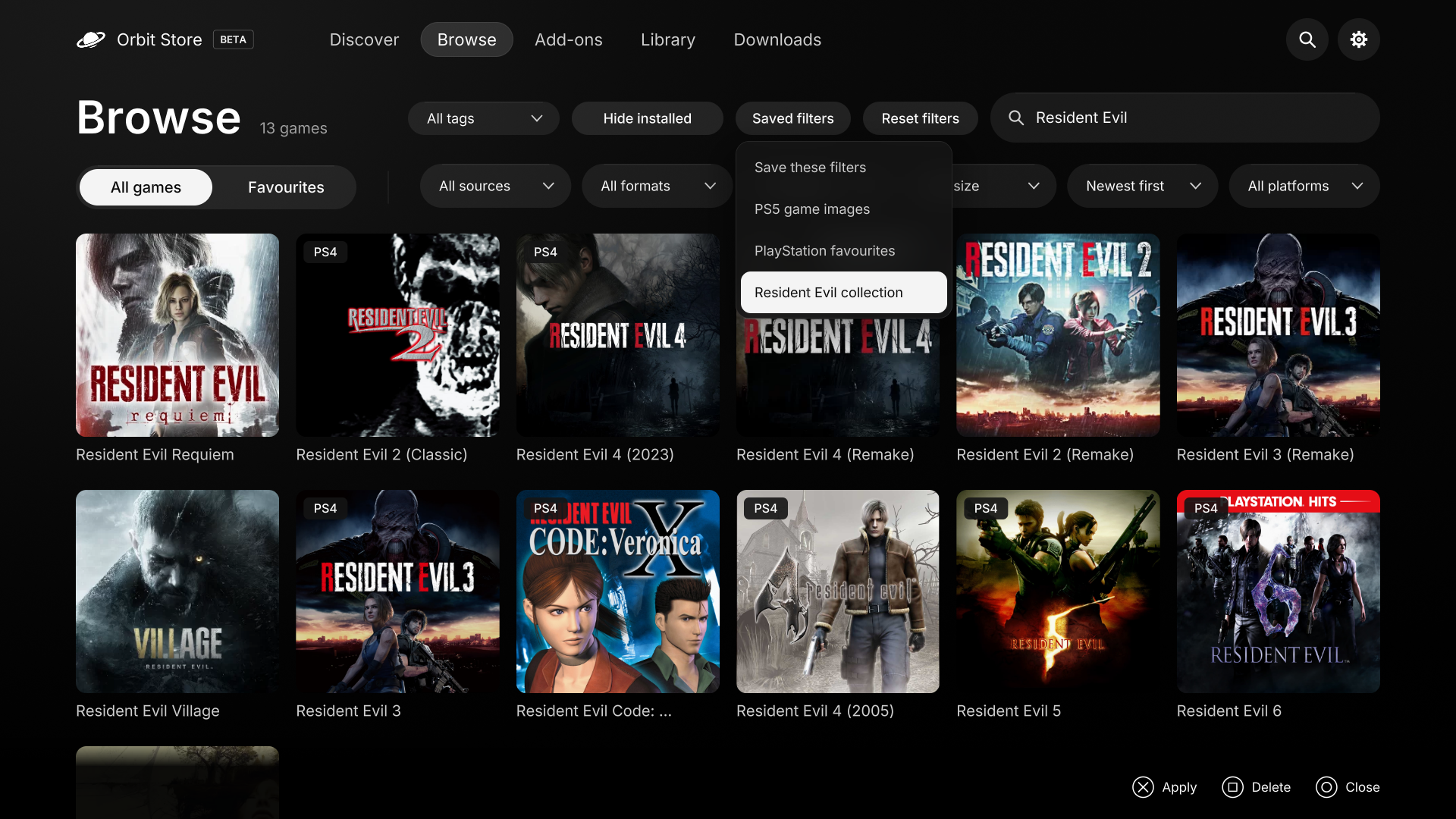
- Save your filters. Name the filters you use most in Browse or Add-ons and apply them again in one go. They work in the browser, TV app and Orbit Zero.
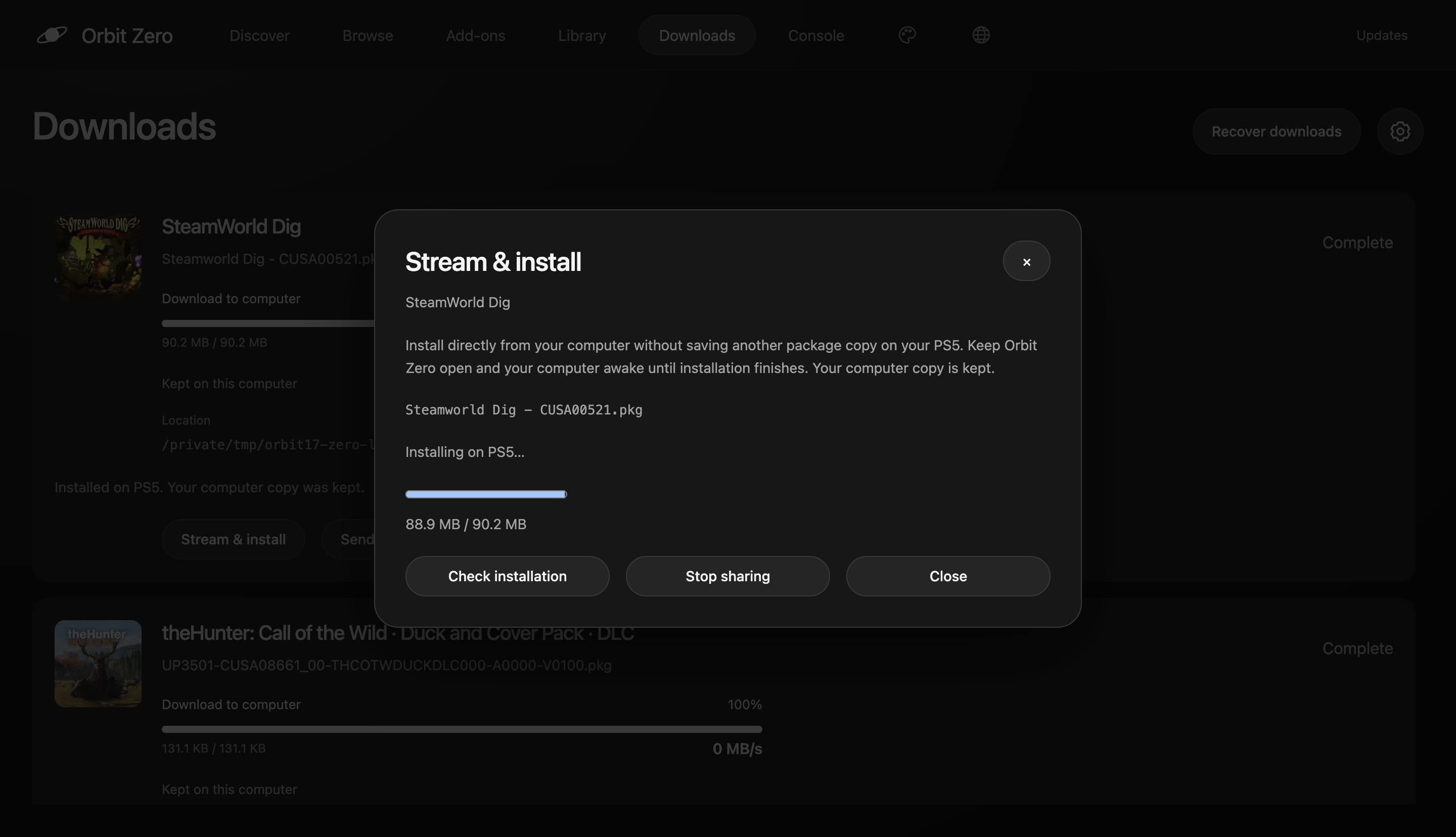
- Stream installs from your computer. In Orbit Zero, download a PKG or FPKG to your computer and send it to the PS5 installer over your home network. No second copy goes into the PS5’s download folder, but the PS5 still needs space for the installed game.
- Vikingfile accounts. Sign in through the official provider page. Orbit checks the session and tries to obtain a download link without opening another window. If Vikingfile asks for verification, complete it and wait for Orbit to pick up the ready link.
- This update also brings the catalogue to 2,090 games with 4,895 download options, plus 626 add-ons with 628 download options across 192 base games.
Orbit Store · Native PS5 app (FFPKG) and browser (ELF)
- A file manager on your PS5. Library → Files shows internal, USB and available extended drives. Copy and move run in the background with progress, pause and resume. Orbit protects files in use and asks before deletion. Save a file to your paired phone or computer, or unpack ZIP, RAR and 7z archives on the console.
- Library keeps up. Game sizes are measured automatically. Adding a game through Files or connecting a drive triggers a scan when a compatible ShadowMount is available. Scan for games remains available as a fallback. Installed packages also appear when ShadowMount does not list them.
- Sign in to Vikingfile on PS5. Open Vikingfile account from settings, enter your account code on the provider’s page and complete any verification. Back in Orbit, choose Check sign-in to see whether the session is confirmed. The native app and PS5 browser have separate sign-ins.
- Cinema improvements. Library and Downloads use the Store layout with Cinema’s colours.
- Smaller fixes. Favourite hearts now fill when selected,
pippojoins the automatic archive-password list, and Files navigation keeps you in Library when going back through folders.
Orbit Zero · Mac, Windows and Linux
- Stream & install. Download a PKG or FPKG to your computer, then send it straight to the PS5 installer over your home network. This avoids a second complete package in the PS5 download folder; the console still needs space to install the game. For archives and bundles, wait for extraction and choose the package to install. Keep Zero running until installation finishes.
- Manage your PS5’s files from your computer. With Zero connected to your PS5, open Library → Files to browse, copy, move, rename, delete, unpack and install.
- Vikingfile sign-in on the computer. Enter your account code in Download settings → Vikingfile. Zero fills the official sign-in page and checks the resulting session. Computer and PS5 sign-ins stay separate.
- Shared filters and Cinema changes. Use your saved Browse and Add-ons filters from the paired PS5. Cinema’s Library and Downloads use the same updated arrangement as the PS5 apps.
- Download and installation fixes. Computer downloads no longer get stuck waiting for a connection check. Reopening Zero can reconnect the original PS5 to check an interrupted streaming installation; retrying a file request keeps other installation requests working.
Learn more: Files · Saved filters · Vikingfile accounts · Stream & install.
Install Orbit Zero on Mac, Windows or Linux · Install Orbit Store on PS5
Install Orbit Zero on your computer
Choose the package matching your computer from Assets: macOS DMG, Windows installer or ZIP, or Ubuntu/Debian DEB. Linux TAR.GZ packages are also available. Both ARM64 and x64 builds are included; Linux DEB names use amd64 for Intel/AMD computers. Quit the older app before installing the new version. See the installation guide for setup and operating-system permissions.
Install the native TV app (FFPKG)
Download PPSA99177.ffpkg from Assets, verify its .sha256, and copy it to /data/homebrew/ on your PS5. Let ShadowMountPlus register it, then open Orbit Store from the Games row. Native app 1.11.0 includes the Orbit Store 1.7.0 service.
If an older Orbit service is running, select App settings → Update / reinstall → Stop Orbit to restart in its browser interface before opening the updated app so the new service can start. Pairing, settings and your queue remain saved. Native installation and update guide.
Use or update the browser version (ELF)
Download orbit_store.elf and its .sha256 from Assets, verify the checksum, then run the ELF through Payload Manager or your ELF loader. Open the Orbit shortcut in the Media tab, or http://<ps5-ip>:34177/ on another device on the same local network.
To replace a running older version, select App settings → Update / reinstall → Stop Orbit to restart, then launch the new ELF. Orbit Zero also includes the matching ELF under Console → Start Orbit on PS5, so you can upload it from your computer without downloading the ELF separately.
On Orbit 1.5.0 or later, Update Orbit updates the TV app and the service together. Keep your local ELF loader running on port 9021 for automatic service restart; follow Orbit's manual instructions if it is unavailable. Reopen the TV app after updating it.
Downloads and source
orbit_store.elfis the PS5 service and browser interface;PPSA99177.ffpkgis the native TV app with the same service included.Orbit-Zero-1.7.0-*files are the desktop packages. Choose the operating system and architecture matching your computer.orbit-store-1.7.0-source-bundle.zipcontains the corresponding Store application and dependency sources, licence notices and rebuild instructions.SHA256SUMScovers the release assets. Verify a binary withshasum -a 256 -c <filename>.sha256, or useSHA256SUMSfor the desktop packages.