
Orbit Store 1.6.0 (Beta)
New in Orbit 1.6.0: notifications on your phone, up to 64 connections per download and other improvements.
-
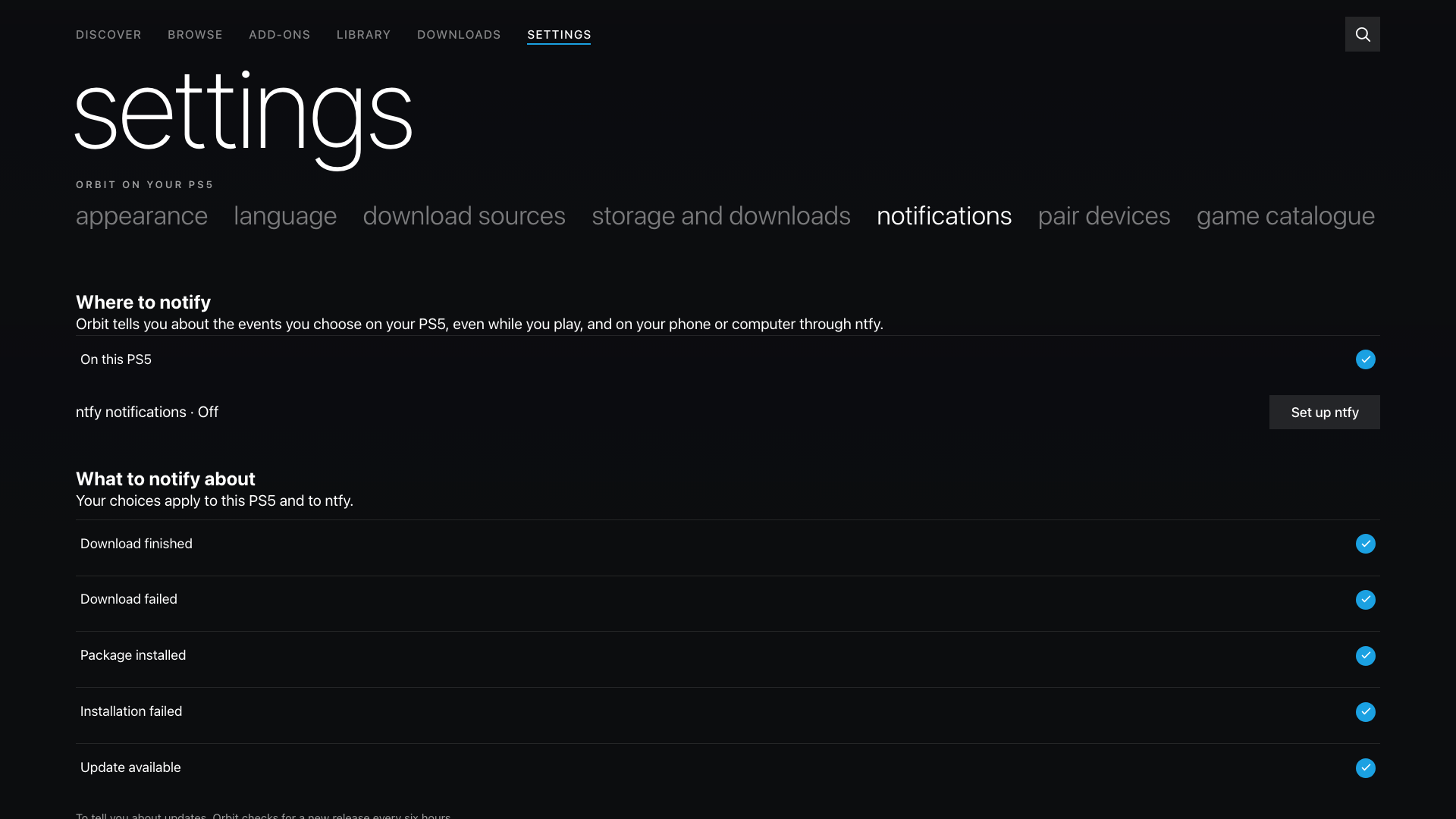
Notifications on your phone. Orbit can now notify you through ntfy, on your phone or computer, as well as on your PS5. Use ntfy.sh or your own server.
-
Up to 64 connections per download. Choose from 1 to 64 in App settings → Storage. Eight stays the default. More connections only help when the source allows them; if a host refuses, Orbit retries with fewer.
-
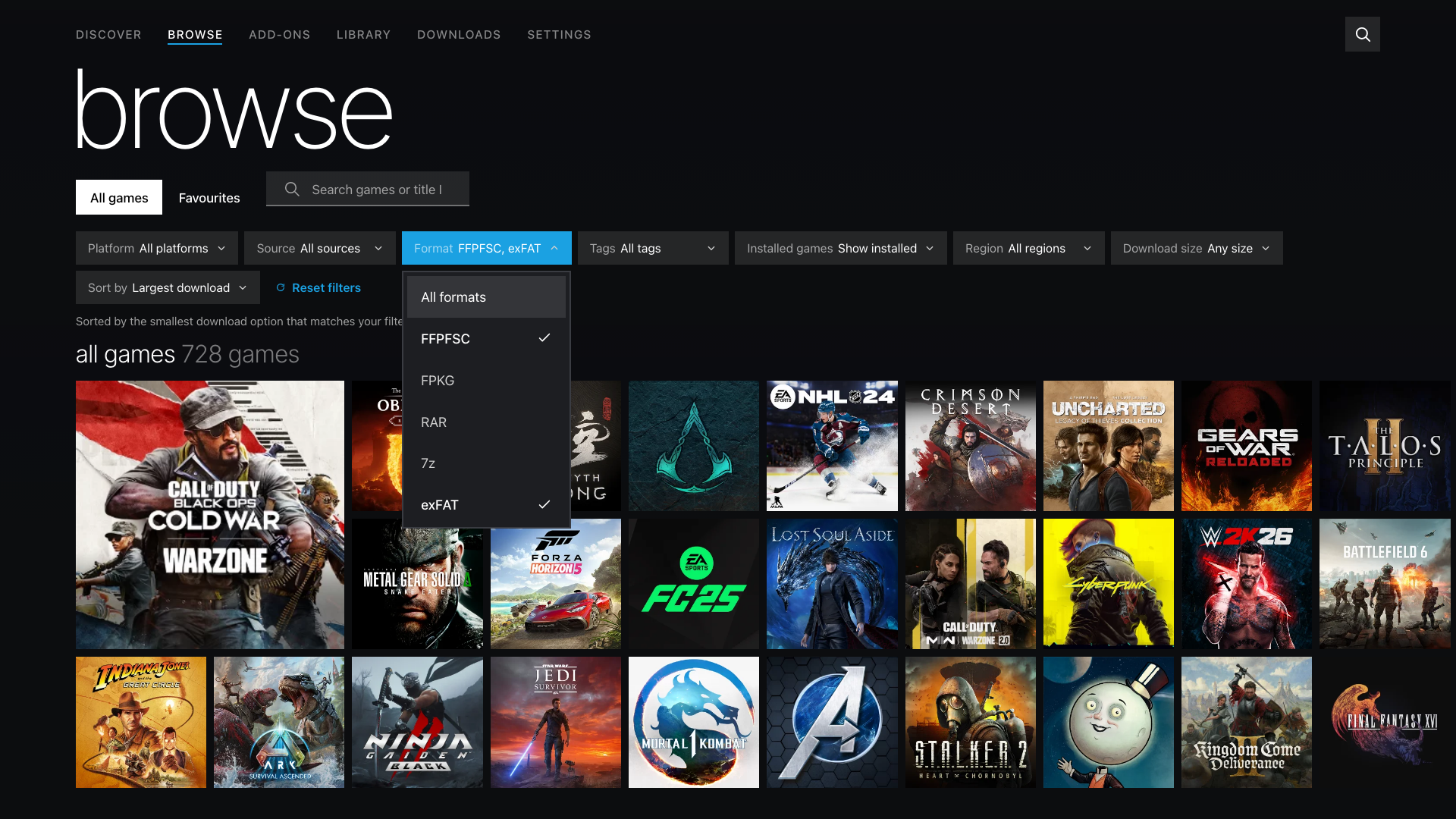
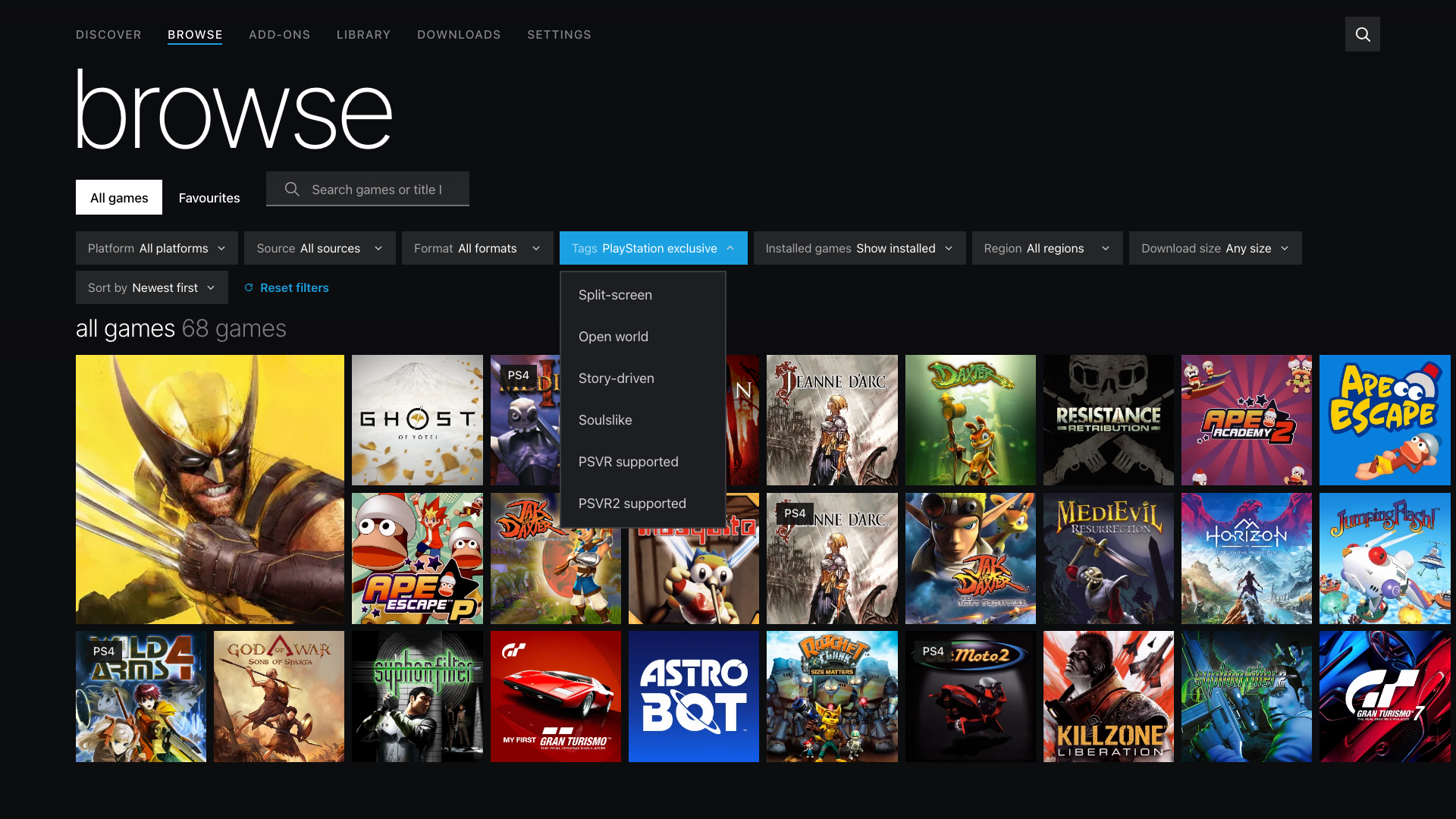
More control over Browse. Select multiple formats or sources at once, use PlayStation exclusive and other game tags, and hide games already installed or saved on a drive.
-
Free up space after installing. Orbit can delete a PKG or FPKG once it has installed on your PS5. It's off by default.
-
This update also pushes Orbit’s catalogue to 2,045 games with 4,834 download options, plus 542 add-ons with 544 download options across 138 base games.
Orbit Store · Native PS5 app (FFPKG) and browser (ELF)
- Notifications have their own settings. In App settings → Notifications, choose where to notify (on this PS5, through ntfy, or both) and what about: downloads that finish or fail, packages that install or fail to install, and new Orbit releases. When a package installs, the notification also says whether the downloaded file was deleted. Orbit checks for a new release ten minutes after it starts and then every six hours, and tells you about each release once.
- Set up ntfy. Open Change ntfy settings and enter a server address, a topic and, if your server needs one, a username and password, then choose Send test notification. For an access token, leave the username empty and enter the token as the password. The password is never shown again after saving.
- Delete packages after installing. Turn it on in App settings → Storage → Installed packages. If installation fails, or the file changed after Orbit checked it, the file is kept.
- Connections are shared. Downloads running at the same time share up to 64 connections, and a download that has already started keeps its split.
- Better Browse filters. Select several formats or sources at once and hide games already installed or saved on a drive. Filter by PlayStation exclusive, Local co-op, Split-screen, Open world, Story-driven, Soulslike, PSVR supported or PSVR2 supported. VR filters include required and optional modes; PlayStation exclusives exclude official PC, Xbox and Nintendo versions.
- TV app improvements. Clear finished or cancelled downloads from the list in one go, view diagnostics, and change language in Appearance. Add-on details now show whether the required game is installed or saved on a drive. Orbit Zero settings in the TV app are also translated.
- Browser improvements. Set a Default drive for new downloads, see your paired Orbit Zero computer, and save diagnostic reports to a drive. You can also enable or disable Orbit Zero connections from the PS5 browser.
Orbit Zero · Mac, Windows and Linux
- Downloads keep their real names. A finished download on your computer is saved under its own name instead of
<id>.cache, so you can find it and copy it yourself if a transfer fails. Zero never replaces a file that's already there; it adds a number instead, for exampleGame (2).pkg. - Better Browse filters. Tick several formats or sources at once, use the same eight game tags, and hide games that are installed or on one of your PS5's drives. Dropdown menus now match Orbit Store across all four interfaces.
- Choose your connections. Set 1 to 64 connections per download in Download settings. Eight stays the default.
Install Orbit Zero on Mac, Windows or Linux · Update Orbit Store on PS5
Install Orbit Zero on your computer
Choose the package matching your computer from Assets: macOS DMG, Windows installer or ZIP, or Ubuntu/Debian DEB. Linux TAR.GZ packages are also available. Both ARM64 and x64 builds are included; Linux DEB names use amd64 for Intel/AMD computers. Quit the older app before installing the new version. See the installation guide for setup and operating-system permissions.
Install the native TV app (FFPKG)
Download PPSA99177.ffpkg from Assets, verify its .sha256, and copy it to /data/homebrew/ on your PS5. Let ShadowMountPlus register it, then open Orbit Store from the Games row. Native app 1.10.0 includes the Orbit Store 1.6.0 service.
If an older Orbit service is running, select App settings → Update / reinstall → Stop Orbit to restart in its browser interface before opening the updated app so the new service can start. Pairing, settings and your queue remain saved. Native installation and update guide.
Use or update the browser version (ELF)
Download orbit_store.elf and its .sha256 from Assets, verify the checksum, then run the ELF through Payload Manager or your ELF loader. Open the Orbit shortcut in the Media tab, or http://<ps5-ip>:34177/ on another device on the same local network.
To replace a running older version, select App settings → Update / reinstall → Stop Orbit to restart, then launch the new ELF. Orbit Zero also includes the matching ELF under Console → Start Orbit on PS5, so you can upload it from your computer without downloading the ELF separately.
If you're on 1.5.0, Update Orbit in Updates updates the TV app and the service together. Keep your local ELF loader running on port 9021 for automatic service restart; follow Orbit's manual instructions if it is unavailable. Reopen the TV app after updating it.
Downloads and source
orbit_store.elfis the PS5 service and browser interface;PPSA99177.ffpkgis the native TV app with the same service included.Orbit-Zero-1.6.0-*files are the desktop packages. Choose the operating system and architecture matching your computer.orbit-store-1.6.0-source-bundle.zipcontains the corresponding Store application and dependency sources, licence notices and rebuild instructions.SHA256SUMScovers the release assets. Verify a binary withshasum -a 256 -c <filename>.sha256, or useSHA256SUMSfor the desktop packages.