
Orbit Store 1.1.0 (Beta)
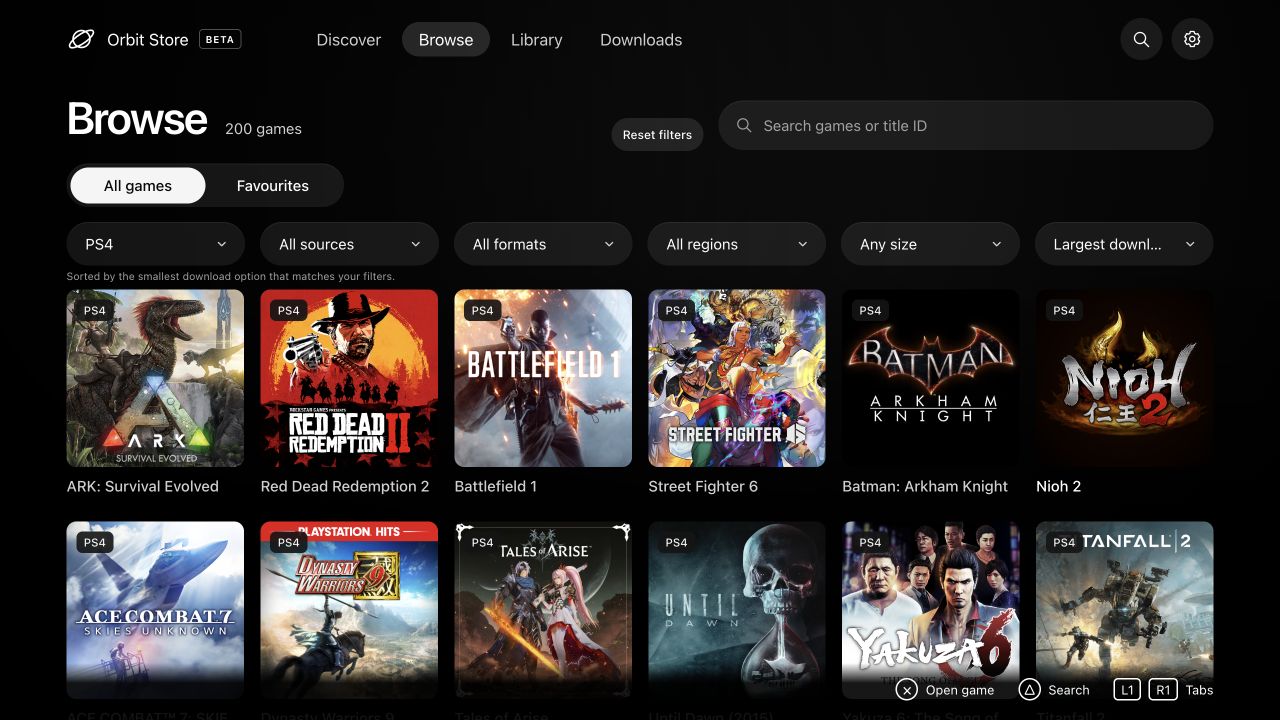
A big update: PS4 games join Orbit, now with 200 PS4 games and 920 games across PS4 and PS5 editions, with more coming soon.
Orbit Zero · Mac, Windows and Linux
- Orbit Zero in your language. Choose English, German, Spanish, French, Hungarian, Italian, Dutch, Polish, Brazilian Portuguese, Russian or Turkish from the Language menu.
- Download more at once. Download two games to your computer at a time, or choose a different limit in Download settings.
- Recover interrupted transfers. Resume after reconnecting to your PS5, clear a partial transfer, or stop a stuck job while keeping its remaining files. A stopped job no longer blocks the next transfer.
- PS4 browsing on desktop. Find PS4 editions using the Platform filter, with game descriptions, release dates, covers and backgrounds.
Orbit Store · PS5 browser and native app
- Square to favourite. Press Square on a selected game in native Browse or Discover to add or remove it from Favourites.
- More reliable service restarts. Orbit checks that the installed service has actually replaced the previous session and tells you when the wrong version is still running.
- Local hostnames. Open Orbit’s browser interface using local names ending in
.home.arpa,.localor.localhost, as well as the PS5’s IP address. - TorBox limit messages. Download options shows the limit reported by TorBox when a file is too large for that source.
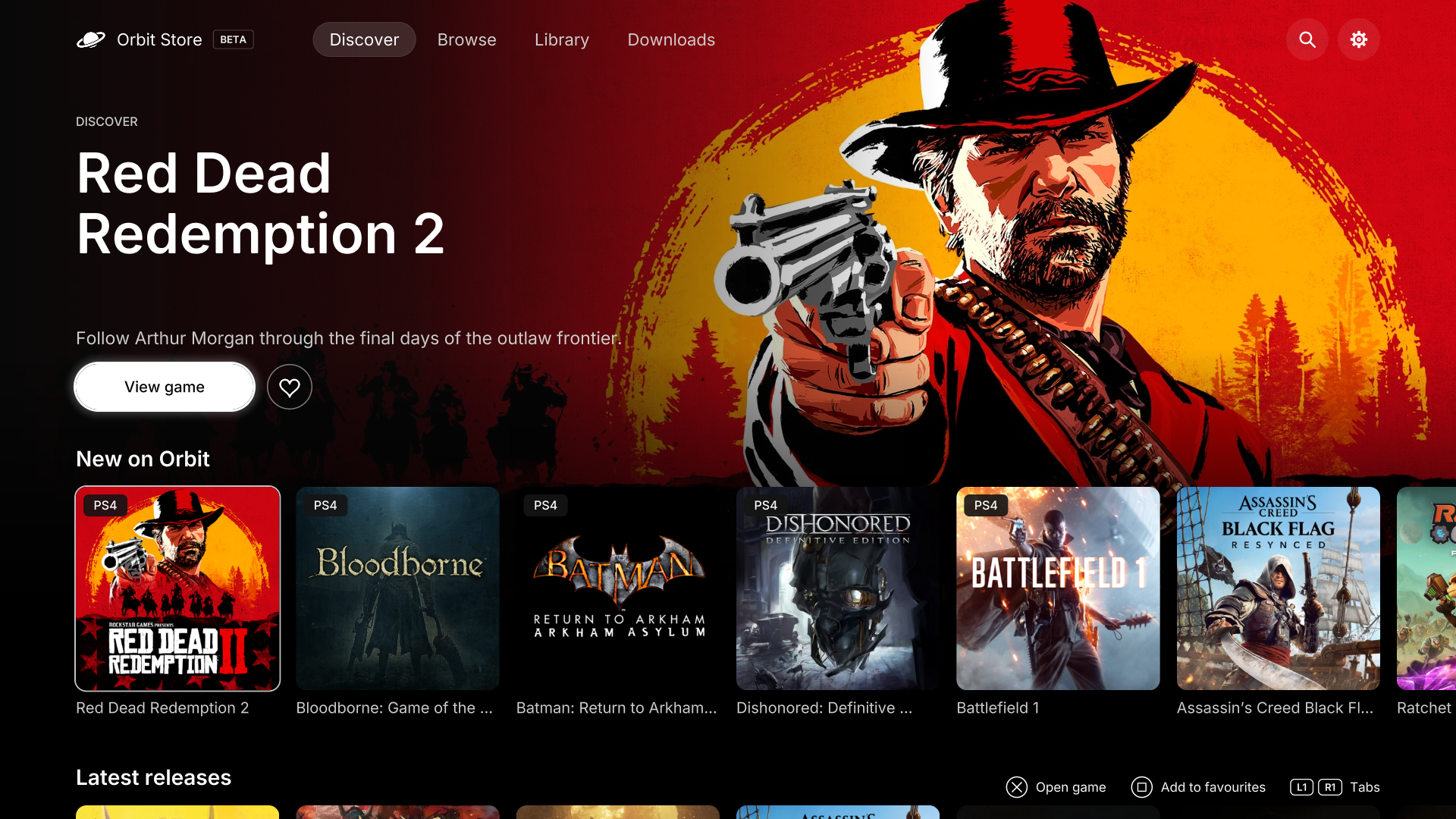
- Browse by platform. Find PS4 and PS5 editions using the Platform filter, with clear PS4 labels and complete game details for the new additions. The app continues to run on PS5.
Install Orbit Zero on Mac, Windows or Linux · Set up a PS5 without internet · Update Orbit Store on PS5
Install Orbit Zero on your computer
Download the Orbit Zero 1.1.0 package for your operating system and processor from Assets below. Check it against SHA256SUMS, then install:
- Mac: open the matching
.dmg, drag Orbit Zero into Applications, and open it from there. Choosemac-arm64for Apple Silicon ormac-x64for Intel. Mac instructions. - Windows: download
win-x64for Intel/AMD orwin-arm64for ARM, extract the entire ZIP, then open Orbit Zero.exe. Windows instructions. - Linux: on Ubuntu/Debian, install the matching
linux-amd64.deborlinux-arm64.deb. Portable.tar.gzpackages are also available. Linux instructions.
Keep your computer and PS5 on the same local network over Wi-Fi or Ethernet. With the PS5's jailbreak and Payload Manager or ELF loader running, open Console in Orbit Zero, enter your PS5's local IP address, and select Start Orbit on PS5. Zero supplies the compatible payload; no separate ELF download is needed. Pair using the code shown on your PS5. Your PS5 does not need internet access for this setup or for downloads handled by your computer.
Updating Orbit Zero? Quit the app before replacing it. Your pairing and queue stay saved. Follow the update steps to start the matching PS5 service.
Full installation and pairing guide · Set up a PS5 without internet
Install the native TV app
Download PPSA99177.ffpkg and its .sha256 file, verify the checksum, then copy the FFPKG to /data/homebrew/ on your PS5. Let ShadowMountPlus register it and open Orbit Store from the Games row. Discover opens first. Choose your sources in the native app's setup screen or App settings → Download sources.
If an older Orbit service is already running, stop it deliberately before opening the app so its new bundled service can start. The app preserves a newer saved service. The native app version is 1.4.0, bundled with Orbit service 1.1.0.
Use or update the browser version
Download orbit_store.elf and its checksum, then run it through your payload manager or ELF loader. Open the Orbit shortcut in the Media tab, or pair a phone at http://<ps5-ip>:34177/ on the same network.
Existing users can update the service through App settings → Update / reinstall, choose Stop Orbit to restart, then run the saved /data/orbit-store/orbit_store.elf or a synced manager copy. Loading a replacement while Orbit is running saves it for the next start. Pairing, source choices and the queue remain saved.
In the browser, App settings → TV app installs the native app from the official feed. The native app has separate TV app and download service controls under App settings → Updates. Installation and service restart require your choice. After updating the TV app, close and reopen it. If ShadowMountPlus still opens an older app, restart the console when convenient and run your jailbreak again.
Downloads and source
orbit_store.elfandorbit_store.elf.sha256: download service and browser interface.PPSA99177.ffpkgandPPSA99177.ffpkg.sha256: native TV app, including the same ELF.orbit-store-1.1.0-source-bundle.zip: complete application source, corresponding dependency sources, licence notices and rebuild instructions for both programs.
Run shasum -a 256 -c <filename>.sha256 beside each binary to verify it. Source-bundle contents have their own SOURCE-SHA256SUMS.
Orbit Store is in beta. The game catalogue offers single-file FFPFSC, exFAT, FPKG and PKG options. Package downloads save a .pkg file; install downloaded game packages separately. The native app FFPKG is Orbit itself. Keep the PS5 awake during downloads. Library actions require a compatible ShadowMount v1 local API. See the guides for setup and troubleshooting.
Orbit Store is free software under GPL-3.0-or-later. The application source is built from commit 987022e51eaf925f38093b44f5c24f5e69f57cc9; component sources and licences are listed in THIRD-PARTY-NOTICES.md and SOURCES.json.