
Looking for Decky integration? Download the latest MAKO Decky release.
What's new in MAKO Renderer v4.6.0

Release codename: Tempest
“The tempest did not break around the mako. It broke wherever the mako passed.”
Tavian Rook, Annals of the Tempest Court
Tempest improves Frame Generation speed, GPU memory use and frame pacing, with per-game shader tuning, shared MangoHud layouts and clearer diagnostics.
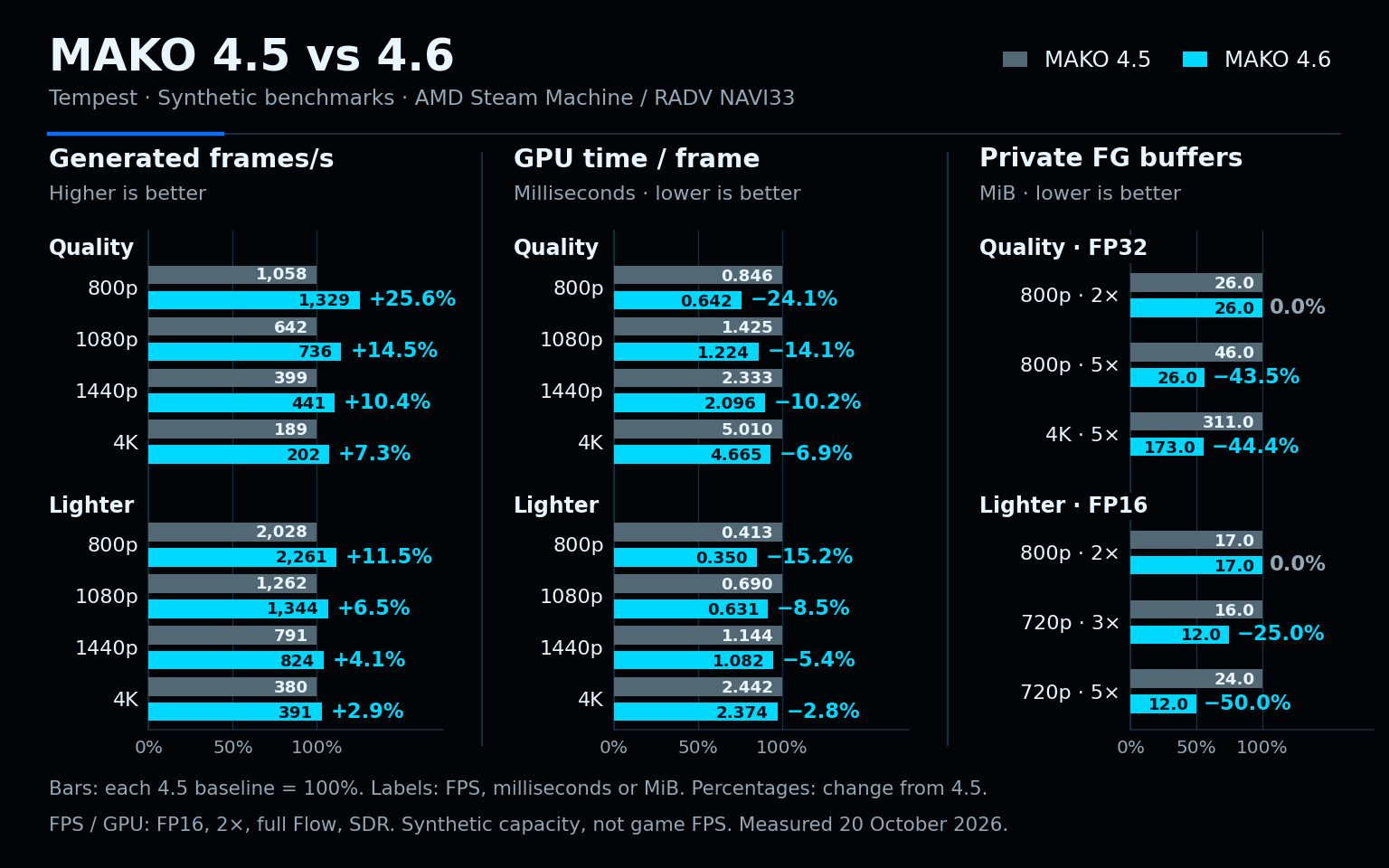
Native source-build comparison on AMD Steam Machine (NAVI33/RADV). Synthetic results; game FPS and Steam Deck gains were not measured. Buffer memory excludes model weights, shared images, driver memory and game VRAM.
- GPU Headroom: A new live Performance control in the configuration app offers 5%, 10%, 15% or 20% spare GPU capacity targets during Frame Generation. It gradually reduces real FPS using supported AMD utilization readings; Adaptive can use more generated frames within its ceiling, while Fixed can lower output FPS. Off by default, with no Headroom sampling or extra cap when left Off. Gamescope is optional; brief spikes and GPU-load limits can prevent the target from being reached.
- Faster Frame Generation: Lower CPU and GPU overhead benefits Fixed and Adaptive with FP16 or FP32. The chart above compares Quality and Lighter throughput and GPU time with v4.5.0. In-game gains depend on the game, hardware and settings.
- More efficient FP16 Quality: Supported native FP16 Quality models use a leaner compute path on AMD’s RADV driver, preserving model weights, precision and Flow Scale without adding image buffers. It applies to Fixed and Adaptive, bridge and non-bridge, with VRR on or off. Enable Allow FP16 and leave Lighter FG Model and Ultra Performance off. Steam Deck and other AMD/RADV handhelds can use this path; their performance gains have not yet been measured.
- Lower overhead for Quality and Lighter: Fixed 2× and Adaptive steps that produce one generated frame now submit preprocessing and generation together, reducing CPU submission cost and gaps between GPU stages. This works with FP16 or FP32, in bridge and non-bridge modes, preserving model quality and Flow Scale. Larger generation batches retain their existing path.
- Lower FG working-buffer memory: Generated outputs share temporary image storage, reducing private buffer allocations at higher multipliers. The chart includes unchanged 800p 2× controls and measures FG working buffers rather than total MAKO or game VRAM.
- Less CPU work for Scaling and Shaders: Scaling reuses preparation work, and the bundled shader system reduces temporary allocations during frame presentation. Your scaling method, sharpness, shader effects and effect order are preserved.
- Adaptive and FIFO stability: Brief image-availability misses preserve a proven Adaptive workload. Smooth Cadence retains qualified FIFO pacing through short cadence dips. Sustained slowdowns and unsuccessful higher-multiplier trials still trigger the existing safeguards.
- More reliable multiplier checks: Adaptive compares real-frame rate and delivered output after pacing settles, refreshing older baselines when needed. Brief bursts of queued frames no longer repeatedly restart the comparison. When both workloads reach the target, MAKO prefers the lower multiplier.
- Better use of frame-cap waits: Eligible capped Fixed and Adaptive paths prepare generated output during the existing source-frame wait, including supported Scaling and bridge paths. Output timing stays coordinated while preserving the configured cap and application presentation waits.
- Gamescope and Vulkan timing: The bridge keeps feedback flowing during game or driver idle periods, corrects VRR timing interpretation and reuses ready presentation deadlines. Newer Gamescope reports and optional Vulkan timing on non-bridge surfaces are used when supported, with existing pacing retained otherwise. Gamescope remains optional for desktop SDR operation.
- Customize shaders per game: Open Customize shaders in the configuration app to adjust selected bundled and compatible custom effects with sliders, toggles, choices and colour controls. Reset shader to defaults restores the selected effect.
- Live shader adjustments: Changes save with the selected profile and are shared across its AC and battery modes. They apply live when Shaders was enabled at game launch; rebuilding an effect may cause a brief hitch.
- Clearer shader controls: Palettes such as Nostalgia’s Custom palette use colour swatches, sliders and exact-value fields. Sliders respect the author’s step size, with sensible decimal increments when none is provided. Numeric fields show cleaner values without changing stored precision or saving untouched fields.
- More usable shader editor: The movable editor stays above the game, and Hide controls collapses it while comparing results. Controls stay clear of scrollbars and window edges, keeping Reset accessible in narrower windows.
- MangoHud in the configuration app: Enable host-installed MangoHud per profile under External Tools, then copy the updated Steam launch option and restart the game. The selection is shared with MAKO Decky. Both launchers support an optional
~/.config/mako-render/mangohud.conflayout. Standalone activation requires Python 3; MangoHud remains exclusive with Shaders and unavailable for Flatpak games. - Native FPS above the Adaptive target: With Fractional Adaptive and Automatic Real Frame Priority, sustained native FPS can exceed Target FPS without generation when Base FPS Cap is off or at least the target. Manual caps remain enforced.
- More complete translations: Performance, HDR, scaling and Remote Play controls have more consistent translations across the configuration app and MAKO Decky. Bundled shader names and the file picker’s “All Files” filter follow the selected language. Thanks to Tak-attack for the Japanese improvements in PR #91.
- Better diagnostics: Reports retain Wayland errors and multi-line failure details in Steam’s timestamped logs. Presentation-wait summaries identify the first failed or timed-out call, its requested timeout and actual duration; timing records identify available compositor capabilities. The collector can select from all ten launch sessions retained by MAKO Decky when diagnostics are enabled.
🎮 In-game considerations
Tip
Try the game’s V-Sync setting both on and off. Neither setting is universally best: the result depends on the game, its FPS cap, VRR, and the compositor. Keep whichever option feels smoother and more responsive for that game.
Every game, renderer, and display setup behaves differently. Compare Fixed Frame Generation, Adaptive Frame Generation, and scaling-only operation one setting at a time. If Frame Generation, Scaling, or Shaders do not work, test Fullscreen, Borderless Fullscreen, and Windowed; none is universally best. For Scaling, also test in-game resolutions and verify that the input is smaller than the display. Changing display mode can change GPU cost. Restart after changing a setting labelled (Restart). Flow Scale and Lighter FG Model normally apply live and may cause one brief hitch while MAKO replaces their private resources.
- Adaptive target behaviour: Adaptive varies the generated-frame count toward an average target. It cannot reduce a native frame rate already above that target, and the result still depends on the selected multiplier plus available GPU and compositor capacity.
- Quality and latency tuning: Higher multipliers and lower real-frame rates can increase ghosting and input latency. Smooth Cadence may improve motion consistency while reducing responsiveness, so compare the available choices per game.
Important
MAKO does not contain or distribute Lossless Scaling, Lossless.dll, or extracted proprietary model payloads. Fixed or Adaptive Frame Generation and LS1 scaling read selected resources at runtime from a lawful, user-supplied Lossless Scaling installation. The open MAKO Scaler does not use it. MAKO does not alter the user's DLL file, and translated resources remain process-local. Users are responsible for complying with the terms applicable to their copy.
Installation
Choose the right download
| Release file | Use it for | Installation owner |
|---|---|---|
MAKO-Renderer-v4.6.0-linux.tar.xz
| General Linux and direct user-local installation, including SteamOS without MAKO Decky | The included graphical installer manages files under ~/.local.
|
mako-renderer-bin-4.6.0-1-x86_64.pkg.tar.zst
| Arch Linux or a traditional writable Arch-based distribution—not SteamOS | Pacman manages the system-wide files under /usr.
|
MAKO-Renderer-v4.6.0-flatpaks.tar.xz
| Flatpak games, launchers, and emulators | The archive contains separate MAKO Vulkan extensions for the supported Freedesktop runtimes; it does not install the host UI or CLI. |
GitHub's automatically generated Source code ZIP and tarball contain source code, not ready-to-run MAKO Renderer packages. SteamOS users who want the managed plugin workflow should use the separate MAKO Decky release.
Host archive
Download MAKO-Renderer-v4.6.0-linux.tar.xz, extract it into a new folder, then use the included graphical installer:
- Double-click Install MAKO Renderer.
- Choose Execute if your file manager asks.
- Confirm the installation. The wizard verifies the package, installs it under
~/.local, safely updates existing files, preserves profiles, and opens the configuration UI.
To remove it later, open Uninstall MAKO Renderer from the application menu. The wizard removes MAKO-owned files and keeps your profiles unless you explicitly choose to remove them.
The host archive includes 64-bit and 32-bit Vulkan layers; the CLI and Qt UI are 64-bit.
Reopen the configuration UI after installation:
- Application menu: On Steam Deck or Steam Machine, switch to Desktop Mode, open the bottom-left Application Launcher, search for MAKO Renderer Configuration, and click the MAKO-logo app icon.
- Terminal: Run
~/.local/bin/mako-uifrom Konsole or another terminal. Do not run it withsudo.
Configure the profile in the UI or ~/.config/mako-render/conf.toml. Select the licensed DLL path when using Frame Generation or LS1 scaling, then use ~/.local/bin/mako-launch %command% for a direct Steam launch.
Arch Linux package
Download mako-renderer-bin-4.6.0-1-x86_64.pkg.tar.zst and leave it unextracted. Open a terminal in the folder containing the downloaded file, then install the verified system-wide package with:
sudo pacman -U ./mako-renderer-bin-4.6.0-1-x86_64.pkg.tar.zstThe ./ prefix refers to the terminal's current folder; this command does not download the package. If you saved the file elsewhere, use its full path instead. If pacman reports could not find or read package, check the path and exact filename, or download the package again if it is missing.
The package installs MAKO Renderer under /usr, preserves profiles under ~/.config/mako-render, and does not touch MAKO Decky's user-local Renderer under ~/.local. Use either the system package or the user-local installation as the active owner for a user; see the Arch package guide for coexistence details.
After installation, open MAKO Renderer Configuration from the application menu or run mako-ui, create a game profile, and use /usr/bin/mako-launch %command% as that native Steam or Proton game's launch option. Installing the package alone does not activate MAKO globally.
Flatpak runtime extensions
Download and extract MAKO-Renderer-v4.6.0-flatpaks.tar.xz. It contains one self-contained MAKO extension for each supported Flatpak runtime. Install the extension matching the application runtime, for example:
flatpak install --user org.freedesktop.Platform.VulkanLayer.makorender-24.08.flatpakUpdating an existing MAKO Renderer installation
- Quit every game or application currently using MAKO Renderer.
- For a user-local installation, download the newer host archive, extract it into a new folder, and run Install MAKO Renderer again. For the Arch package, download the newer
.pkg.tar.zstand runsudo pacman -Uon it. - If you use Flatpak applications, download the matching Flatpak archive and reinstall the extension for each runtime you use.
- Restart the game. Revalidate the configuration with
mako-cli validateif you changed the DLL path or profiles.
Keep the previous archives until the new version has been tested with your games.
Before you play
- Test MAKO per game. Start with Frame Generation and Scaling disabled, then enable one path at a time before combining them.
- If you use Frame Generation or LS1 scaling, confirm the detected
Lossless.dllpath before launching. Leaving it blank permits normal discovery. MAKO Scaler does not need it. - Do not combine MAKO with another frame-generation or scaling Vulkan wrapper for the same game.