
Calendar Card Pro v5.1.0
Open, change, move and add events right on the card. A tapped event can now open in the card's own popover, where you change it where it is shown, move it to another calendar or delete it, and in grid view you draw a new event across the hours it should cover and drag an existing one to another time or day. A search in the toolbar looks through the card's events a year back and ahead, a swipe pages through the days, and the toolbar takes buttons of your own.
Most of that is yours to turn on. Three things reach every card without a setting: on Home Assistant 2026.5 or later, an event changed anywhere appears on every open dashboard as soon as Home Assistant knows of it, with no polling; when a dashboard opens, a slow calendar no longer holds back the others; and the card redraws far less often while nothing it shows has changed. A few things change on cards you already have; they are listed under ⚠️ Changes to Existing Cards, below the new features.
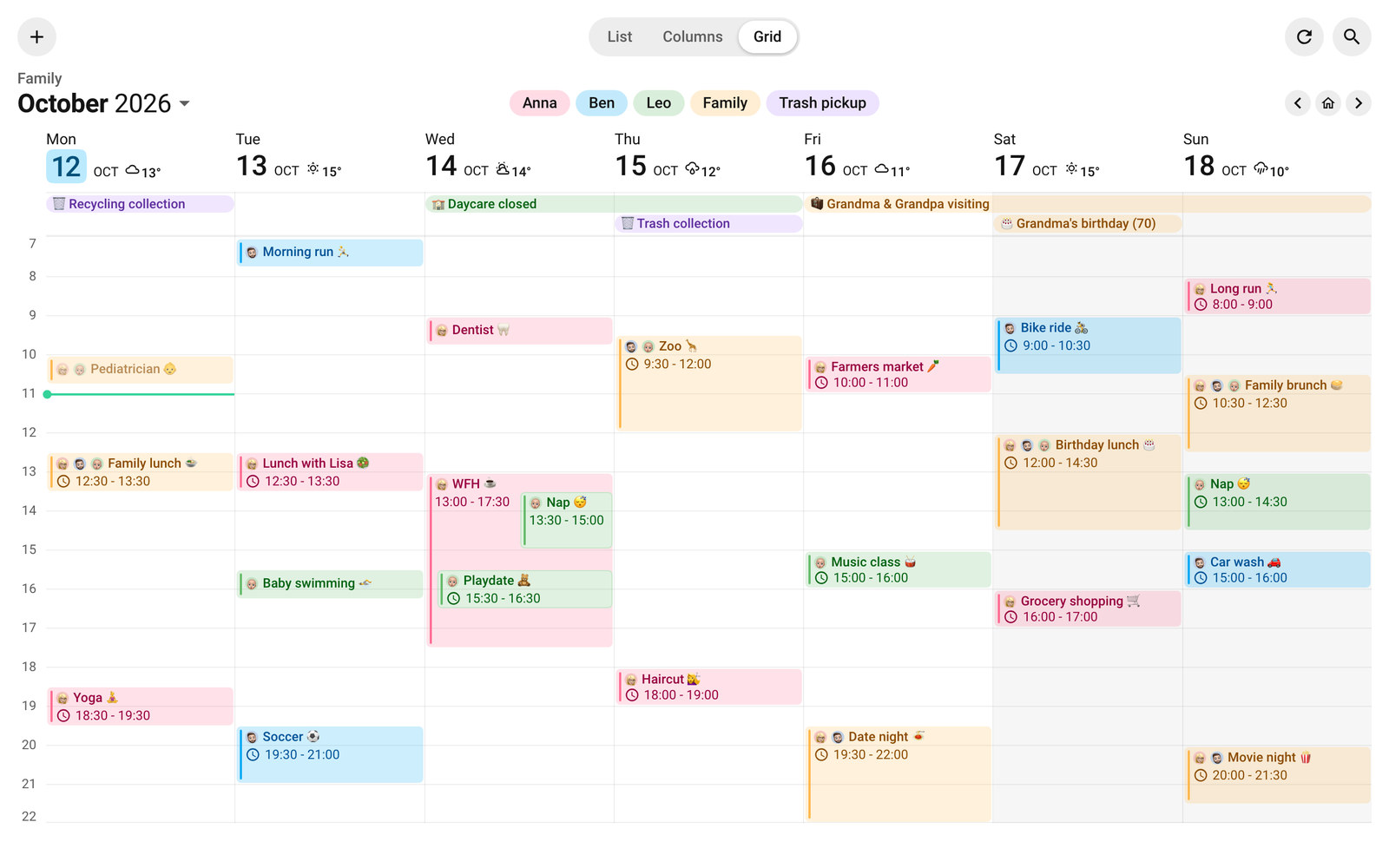
🎬 To see it at work, watch the Family Hub on a kitchen wall and on a phone, and the Family Agenda on a hallway tablet. In the docs, each of the larger new features has a short clip at the top of its section.
🎉 New Features
💬 The Card's Own Event Popover
In v5.0 a tapped event opened Home Assistant's event dialog. With event_tap_action: details it now opens a popover that belongs to the card: beside the event on a wide screen, as a sheet from the bottom on a phone, light or dark with your theme.
- Change an Event Where It Is Shown - There is no Edit button. Tap the title, the date line, the location or the description and change it right there, and the popover saves when it closes. Once something has changed, Cancel and Save appear, and Escape throws the change away. A repeating event asks whether you mean this occurrence or this and all future ones, and Repeat offers the daily, weekly, monthly and yearly rules Home Assistant's own editor offers
- Move It to Another Calendar - Tap the event's calendar and pick another of the card's calendars. A repeating event moves one occurrence, or the whole series from that occurrence on where the series can move whole
- Delete It - Where the calendar allows deleting, Delete sits at the bottom of the popover and asks first
- A Map for the Place - On Home Assistant 2026.10 or later, a location that names one of your zones, or a town or city the card can place, gets a small map, and anything else a pin that opens a Google Maps search. Town and city names are looked up with Open-Meteo's free geocoding service, and the docs say exactly what leaves your home
- Links in the Description - Web addresses in an event's description open in a new tab
- Add in the Same Place - The add button opens the popover on a new event, below the button, and its calendar picker lists only the card's calendars that accept new events. Every word in the popover is Home Assistant's own, in your profile's language
- Which Calendars You Can Edit - Adding, changing, dragging and deleting follow what each calendar's integration declares to Home Assistant. A Local Calendar does all of it, which makes it a good one to try first; a Google calendar adds and deletes; CalDAV, iCloud included, only adds. For changing and deleting CalDAV events there is the custom integration CalDAV Complete. See What Each Integration Allows
allow_event_edit: false and allow_event_delete: false still take editing and Delete away on a wall tablet, and a calendar's own show_location: false or show_description: false keeps those fields out of the popover as well. See The Event Popover and Editing & Deleting Events.
✍️ Tap or Draw to Add an Event
- Tap a Day to Add an Event There -
day_tap_action: add-eventopens a new event on the day you tapped, wherever that day shows no event, in all three layouts: a date, an empty column, or an empty spot of the grid at that hour. Each date is also a button for the keyboard - Draw a New Event in Grid View - With the same option, a tap in the grid adds an event at that quarter hour, and a hold and drag, or a press and drag with a mouse, draws it across the hours and days it should cover. A tap on the all-day band adds an all-day event. The new event is drawn as it will look once saved, in its calendar's colors, and follows the popover while you type
See Tapping a Day to Add an Event and Drawing an Event in Grid View.
✋ Drag an Event to Another Time or Day
In grid view, a timed event that starts and ends on one day moves with a drag: with a mouse at once, on a touch screen after holding it for half a second. It snaps to quarter hours and keeps its length, and a repeating event asks which occurrences move. There is no option of its own; it comes with event_tap_action: details or event_hold_action: details, on a calendar that allows changing events, such as a Local Calendar. See Moving Events by Drag.
🔍 Search the Card's Events
A magnifier at the end of the toolbar finds the card's events a year back and a year ahead by their title, location or description, whatever the case and the accents, so "zurich" finds "Zürich". Upcoming events come first, grouped by month; pick one and the card pages to its day and rings it, wherever that page can show it. It is on wherever the toolbar shows its date navigation, and search: false takes it away. See Searching the Card.
👆 Swipe, Tap & Hold
- Swipe to Page - On a touch screen, a swipe across the days pages exactly as the toolbar's arrows do, mirrored on a right-to-left dashboard. The days follow your finger a little and the new page slides in; with reduced motion on, the page simply changes. It comes with the toolbar's date navigation and needs no option of its own
- Hold an Event for Its Details -
event_hold_action: detailsopens the popover on a hold, so a tap stays free for something else - Your Own Event Actions, With the Event's Fields -
event_tap_actionandevent_hold_actiontake Home Assistant's own actions, and{title},{start},{end},{all_day},{location},{description}and{calendar}fill in the pressed event's values, such as aurlbuilt from its title. An event's text only ever fills an action's data, its confirmation text, or the part of a link after its?or#, so whoever writes the calendar cannot choose which service runs or where a link goes - Three More Card Actions -
add-event,resetandbackjoinexpandandrefreshfor the card'stap_actionandhold_action.backreturns to the page you came from, or where there is none, to the dashboard's first view or anavigation_pathof your own
See Paging Through Dates, Holding an Event, Using the Event's Fields in an Action and Available Actions.
🧰 Your Own Toolbar Buttons
toolbar: { buttons: [...] } adds buttons of your own after the add button, each with an icon, a name and a tap action: back to the page you came from, a light, another dashboard. On a narrow card they fold, one at a time, into a single ⋮ menu. See Your Own Buttons.
🔗 Links in Event Rows
open_links: true turns every web address in an event's location and description into a link in list and column view, so a video call or a booking page is one tap away. Links are drawn only on cards whose events do nothing of their own when pressed, so a press on a link is never also a press on its event. See Links in Events.
🏷️ A Name for Each Calendar
A calendar's name now names it wherever the card does: in the toolbar's chips and filter menu, in the notice for a calendar that could not load, to screen readers in grid view, and in the popover. Without one, the card uses Home Assistant's name, as before. See Naming a Calendar in the Card.
⏱️ The Time Beside the Title
time_position: title puts an event's time on the same line as its title in list and column view, so each event takes a line less, and a title too long for what is left scrolls. ⚠️ It needs a wide event row, about a 360 px list card or a 280 px column; on anything narrower, keep the default below. See Time Beside the Title.
🧩 Two Interactive Starting Points in the Card Picker
On Home Assistant 2026.6 or later, picking a calendar in the card picker's By entity tab now offers Calendar Card Pro - Interactive List and Calendar Card Pro - Interactive Time Grid first. They start with the toolbar, the event popover and tap to add turned on, so a new card can page, search, edit and add from the start. Existing cards and every default are unchanged. The help icon in Home Assistant's card editor now opens the documentation site. See Adding the Card to Your Dashboard.
⚡ Live Updates & Faster Loads
None of this needs a setting, so every card gets it.
- Changes Appear Everywhere at Once - On Home Assistant 2026.5 or later, the card subscribes to each calendar it shows, and Home Assistant sends that calendar's events again whenever they change. An event added, moved or deleted on the card, in Home Assistant, on a phone or in the calendar's own app appears on every open dashboard as soon as Home Assistant knows of it: within seconds for a Local Calendar, at the integration's next sync for Google and CalDAV. There is no polling while live; older Home Assistant keeps polling as before. See Live Updates
- A Slow Calendar No Longer Holds Back the Rest - When a dashboard opens with nothing cached, each calendar is drawn as soon as it answers. With one calendar three seconds late, the others now appear in under a second rather than after more than three
- Less Work Between Changes - The card used to redraw for every state change in the house. It now redraws only when something it shows has changed, plus once a minute to keep countdowns and progress bars moving
- A Bigger Card, a Smaller Editor - The card file every dashboard loads grew with this release's features, from 403 KB to 552 KB, or from 113 KB to 155 KB compressed (gzip -9), which is what a HACS install sends. The visual editor, loaded only when you open it, shrank from 578 KB to 466 KB, or from 168 KB to 144 KB compressed
⚠️ Changes to Existing Cards
- Event Details Open in the Card's Popover -
event_tap_action: detailsand the toolbar's add button open the card's own popover instead of Home Assistant's dialogs - A Search Button in Your Toolbar - A toolbar with date navigation gains the search magnifier at the end of its top row.
toolbar: { search: false }takes it away - Swipes and Empty Toolbar Space - On a card with the toolbar's date navigation, a sideways swipe now pages. A press on the toolbar's empty space now runs the card's
tap_actionorhold_action, as a press on its title always did - Home Assistant Actions on Events Now Run - v5.0 left a tap on an event to the card's
tap_actionfor anyevent_tap_actionother thandetails. An action such asnavigateorurlset there now runs instead refresh_intervalApplies Only When Not Live - On Home Assistant 2026.5 or later the card no longer polls;refresh_intervalapplies to older versions, and to a calendar whose integration cannot be read until it can againallday_expires_atRetires on Time - With past events hidden, an all-day event now leaves the card at the time you set, even when nothing else in Home Assistant changes. Before, it waited for the card's next redraw- Colors Mix in Oklab - Accents, tints and the today tile are now mixed in Oklab rather than OKLCH. On the default themes in current browsers nothing changes; on a theme whose text or card color is a tinted gray, mixed colors shift slightly, because they no longer take on that gray's hue
- The
pulseToday Indicator Sits Centered - In list view it was drawn off-center by half its size, down and to one side, so it moves on list cards that use it. It also holds still when the device asks for reduced motion today_indicatorKeywords in Any Casing -Tile,Dot,PulseandGlownow draw the indicator rather than the word- Card-Mod on the Filter Menu - A background that card-mod gives
.legend-menunow applies exactly as written, so make it opaque, or events show through the menu - The Visual Editor Keeps What You Wrote - Saving in the editor, or answering its upgrade question, no longer deletes the lines you had written out at their default value
- Right-to-Left Layout - On a right-to-left dashboard the list now mirrors (see the fixes below), and
today_indicator_positioncounts from the right. A card-mod rule that setslefton.today-indicatormay need a look
🐛 Bug Fixes
Compatibility
- The Card Crashed Android 7 Wall Panels and Old Headless Chromium - On Chromium 119, the version in Android 7 wall displays such as the Shelly Wall Display and in some headless screenshot add-ons, a dashboard with the card crashed shortly after loading, or the screenshot timed out. On Chrome 122 to 124, today's tinted tile and the running event's green time were missing. The color formulas behind them now wait for Chrome 125, and older versions get simpler ones; Browser Support says which versions run the card (Thanks @twomore for testing it on the panel, #742, and @MarioKuester, #746)
- Colors Drifted Toward an Unrelated Hue - The running event's green time turned gold on Chrome 125 to 131, and on a theme with a tinted gray text or card color, calendar colors and accents drifted toward that gray's hue in every browser. The all-day badge did the same since v4.1. Mixing in Oklab keeps every color on its own hue
Right-to-Left
- The List Kept Its Left-to-Right Layout - On a Home Assistant in Hebrew, Arabic or Persian, the list's dates, separators, today dot, progress bar and loading ring stayed where a left-to-right dashboard has them. They now mirror. On a left-to-right dashboard, a Hebrew label before a Hebrew title no longer jumps to the title's far end
- Icons, Labels & Countdowns Touched Their Neighbors - The clock, pin and info icons, calendar labels and the weather badge sat flush against the text beside them, the UV index ran into the temperature, the dot before a countdown lost its space on one side, a Hebrew grid label's colon jumped to the wrong end, and the filter menu's rows were not mirrored
- 12-Hour Times Read Out of Order - A range came out as "AM - 12:30 PM 11:30", and the grid's hours as "AM 9"
- Titles Written the Other Way Were Cut at Their Start - With
title_max_lines, an English title on a Hebrew dashboard, or the reverse, lost its beginning ("…uarterly planning") rather than its end, and right-to-left weather details came out in the wrong order
Loading & Refreshing
- The New Day Arrived Late at Midnight - A card whose dates follow today showed the newest day without its events after midnight until its next refresh, up to 30 minutes later by default, and the time grid stayed on yesterday for up to a minute
- Deleted Events Stayed While Another Calendar Was Down - While one calendar could not be reached, another calendar emptied of its events could go on showing them until the first came back, and a failing calendar's last events could vanish before the 24 hours the card promises to keep them
- An Emptied Calendar Refilled Itself - In a browser whose storage was full, a calendar that had emptied and then failed to load showed its old events again for up to a day. Where storage is full, blocked or private, cards that share calendars also now share what they loaded, rather than each asking Home Assistant again
- Added Days Flashed "No Events" - Raising
days_to_showdrew the new days as empty for a moment before their events loaded - A New First Weekday Left a Day Empty - With
first_day_of_week: systemand a week-relativestart_date, changing the first day of the week or the language in your profile showed the new week with the day it gained empty until the next refresh - Old Events After a Write - With
refresh_on_navigate: false, an event added, changed or deleted from the card could still show its old state on a reload or on another card until the next refresh - The Corner Spinner Blinked - The small loading spinner flashed on routine background refreshes; it now waits 150 ms, as the refresh button does
Events & Layout
- Broken HTML in a Description Could Freeze the Dashboard - An event whose description held tags that never close took seconds to draw, every time the card drew it, and anyone who can write to a calendar could do that. It now takes milliseconds
- A Day Went Missing Where Clocks Change at Midnight - In time zones such as the Azores, Chile, Lebanon and Cuba, a multi-day all-day event lost a day across the night the clocks changed, most visibly in column view, and in grid view an event carried over from the evening before started an hour down
- A Grid Event Running Past Midnight Never Said When It Ended - In grid view, an event running into the next day showed only its start time, so on the last day the card shows, or below the hours it draws, its end appeared nowhere. Its first block now reads "22:05 - 1:35 (+1)", the number counting the days to the end, and one running until the midnight after it starts reads "22:00 - 0:00" instead of "22:00, ends tomorrow at 0:00" (#768)
- Countdowns in Narrow Places - In narrow grid blocks a countdown could break a time that fit onto two lines, push the time out altogether, or start a line with its dot; in column view countdowns split as "to-morrow", and beside the ALL DAY pill the pill shrank to "A…"; on a narrow list card a long countdown was cut off at the card's edge
- 12-Hour Times Split From AM and PM - On narrow cards "12:30" and "PM" could land on different lines
- Grid Words Broke Where They Fit - In narrow grid blocks, descriptions and locations broke inside words that would have fit ("Brin" / "g"), and a Thai, Hebrew or Arabic title dropped below its calendar label, leaving the label alone on the first line
- A Labeled Grid Title Sat on the Bar - In grid view, the title of an event with a calendar label touched the progress bar or line below it. It now keeps a small gap there where the block has room
Toolbar & Keyboard
- The Filter Menu Closed by Itself - It closed when something else on the dashboard scrolled, and in Firefox sometimes the moment it opened. In Safari, opening it with the mouse also drew a focus ring around the first calendar
- Calendars You Showed Again Went Back Into Hiding - After Reset, or showing hidden calendars again in one tab, the next filter press in another open tab hid them again, and so did a reload
- The Selected Layout Was See-Through - Under a theme with a see-through card background, the toolbar's selected layout blended into its track. On a card with a tap or hold action, the toolbar's hover also flickered in stripes
- Reset Stayed Lit for Nothing - On a narrow card that fell back to the list, Reset stayed lit although pressing it changed nothing on screen
- A Narrow Grid Gained a Day After a Switch or Reset - On a narrow card, choosing the grid in the view switcher, pressing Reset, or reloading after choosing it could draw one day more than the card opens with at that width, cutting titles short and running the date headers together. Column view with
min_days_to_showdid the same. They no longer add that day - A Silent Stop for Screen Readers - A card with a
tap_actionand the toolbar or event details took keyboard focus without saying it could be pressed or what pressing it did. It now offers its tap as a named button, first in Tab order and drawing the card's focus ring - The Editor's Search Missed Calendars by Name - Searching the visual editor for a calendar by the name its panel shows hid that panel and the Calendars picker
Related Issues
- #604 - Event details & editing by @alexpfau. The card's own popover, links (issue 306), maps (issue 614), an event's fields in an action (issue 692), tap and draw to add, and drag to move complete it; attendees cannot be, because Home Assistant's calendar events carry none
- #306 - Turn a URL in an event's location or description into a link by @CloCkWeRX — answered by
open_linksin rows and by the popover - #614 - Open a location in Google Maps by @DJKatastrof, with @LeonCB suggesting Home Assistant's own map — answered by the popover's map and pin. A row's location text is not a link unless it is a web address; an event
urlaction with{location}opens Google Maps in one tap - #692 - Pass the tapped event's fields to a tap action by @alexpfau, first asked for by @MadsBGr
- #699 - Swipe to page by @alexpfau, which @lenaxia's time-grid proposal had first
- #706 - A display name for each calendar by @duczz
- #718 - Your own toolbar buttons by @alexpfau
- #742 - v5.0.0 crashes the Shelly Wall Display on Android 7 by @twomore, who sent the logs, confirmed the fix on the panel and spotted the light-yellow Now color that led to the Oklab change
- #746 - v5.0.0 times out headless Chromium screenshots by @MarioKuester, the same cause as #742
- #768 - Show the end time of an event that runs into the next day by @jangerlach — answered in grid view by the end and its "(+1)" on the event's first block
- #37 - Time and title on the same line by @perolamlarsson, and #243 by @voyagers21 — answered by
time_position: title, which puts the time after the title - #259 - Right-to-left event alignment by @dmatik, whose follow-up about the gap beside the time icon the right-to-left fixes answer
- #339 - The time-grid proposal by @lenaxia. Swipe and the event popover ship here; the one-day step, scrolling to the current time and copying a location do not, so it stays open
Full Changelog: v5.0.1...v5.1.0