
GammaOS Next v1.3.2 (AYANEO Pocket Air Mini) Release Notes
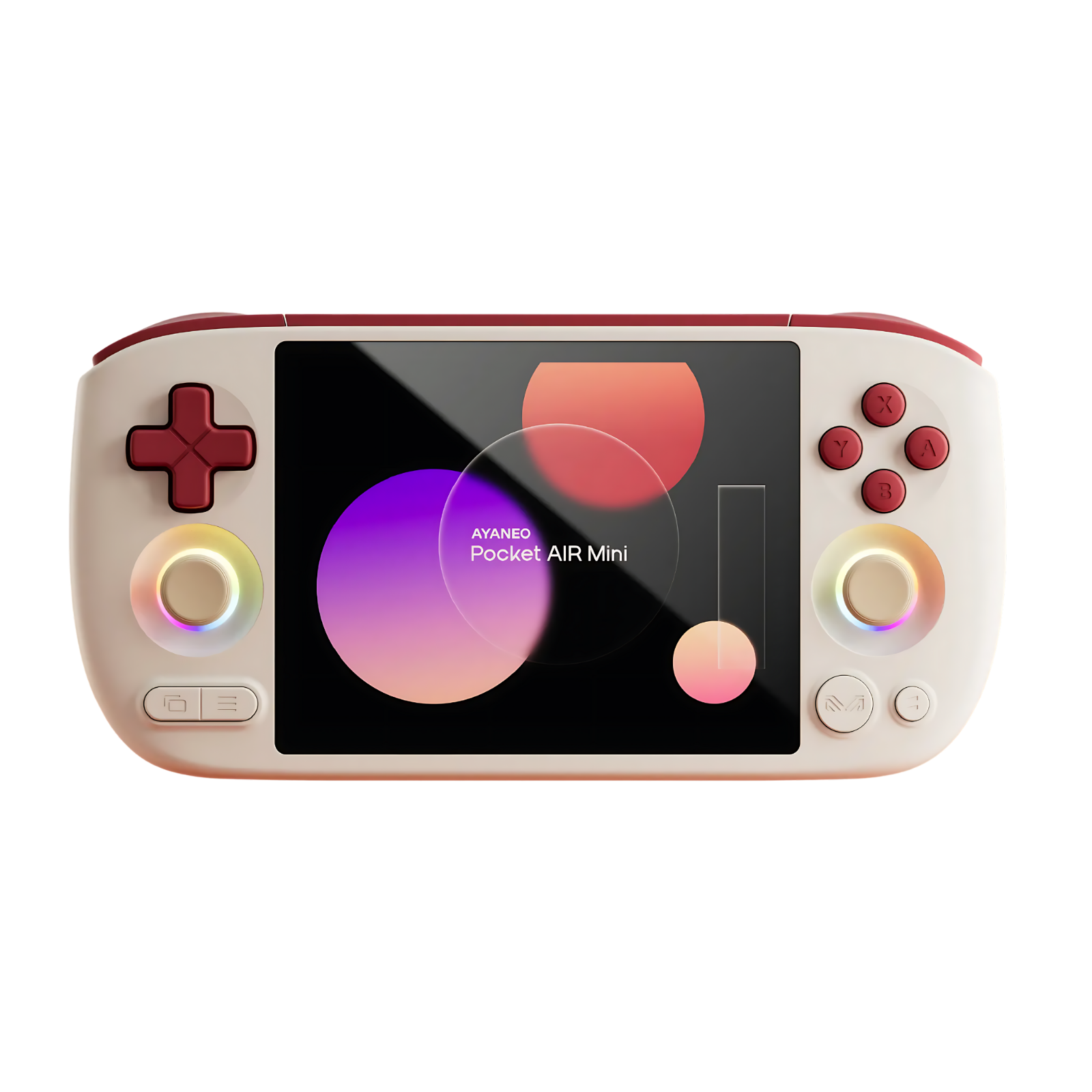
Patreon Exclusive Release
Password obtained from Patreon for GammaOS Insider tier supporters: https://www.patreon.com/posts/157075142This release will become publicly available to non-supporters after the Patreon early access window. The password will be shared once the public release is live.
Release Date: 3rd May 2026.
Full changelog: https://github.com/TheGammaSqueeze/GammaOSNext/wiki/GammaOS-Next-Changelog
What's New in v1.3.2
Bug Fixes
- Fixed lock screen unlock loop: entering the correct PIN/password/pattern previously crashed SystemUI in a loop, sending you back to the lock screen every time. The root cause was the software keymaster rejecting gatekeeper auth tokens for SID-bound synthetic password keys. The SP protector key now skips auth-binding on software keymaster devices. Devices with hardware-backed keymaster are unaffected.
- Fixed GammaPad grabbing the touchscreen: when GammaPad was enabled but no controller was defined in
persist.gammaos.gamepad.devices, all input devices (including the touchscreen) were grabbed, leaving only a mouse cursor and no touch input. GammaPad now correctly requires gamepad capability checks (stick axes + gamepad buttons) when no specific device is configured. - Fixed crash in minimal (Nano) boot when verifying credentials:
locksettings verifycrashed with a NullPointerException on TrustManager and DevicePolicyManager during Nano boot. Added null guards so credential verification works cleanly without those services running. - Fixed idle speaker hiss: lowered analog speaker PGA gain and compensated with a hotter digital volume curve, eliminating audible hiss when audio channels are active but idle.
- Fixed 4K hardware video decoding: YouTube, Netflix, and other streaming services now use full hardware-accelerated decoding up to 2160p. Stock firmware shipped with broken HW decode, forcing software fallback with dropped frames and high CPU usage.
- Fixed hardware video encoding: tools like scrcpy and Vysor now work correctly for screen mirroring and recording. Hardware encoder was non-functional on stock firmware.
New Features
- Nano CE auto-unlock: when a PIN/password/pattern is set in normal Android, the credential is cached in device-encrypted storage. On Nano boot, a new
nano-ce-unlockservice automatically verifies it to unlock credential-encrypted storage, making game saves and ROM data accessible without the Android lock screen. - Boot animation with 60 fps fade-in/out and XP-style loading bar.
Vendor Changes
- Fan daemon updates: improved automatic fan control behaviour.
- Updated controller defaults: refined default deadzones and controller configuration.
- GammaEQ and Quick Settings defaults tuned for the device.
- Disabled system animations for a snappier UI feel.
Performance Tips
For best performance:
- Disable GammaRGB (LED effects) in Settings to reduce background CPU overhead.
- Set the fan to maximum in Settings to keep thermals low and sustain boost clocks.
Performance Improvements
This build ships with a factory GPU overclock baked in:
- Mali-G76 MC4 GPU overclocked from 850 MHz to 950 MHz (+11.8%), delivering smoother performance in demanding emulators and Android games.
Note: This is a GPU overclock and will primarily benefit GPU-limited games and emulators (e.g. GameCube/Wii via Dolphin, PSP via PPSSPP at higher resolution, Android games). CPU-bound emulators such as AetherSX2 (PS2) are limited by CPU performance and will not see a significant boost from this change alone. Future updates may explore CPU-side tuning.
Known Issues
- GammaOS Full includes Google Services and will feel slower than Lite on first boot. After initial setup, sign into Google, then leave the device powered on with WiFi and screen on for a few hours so Google can finish pushing updates. Performance normalises once those updates settle.
- First boot can take 1 to 3 minutes and may appear to hang on the boot logo. This is normal while Android optimises the system for the first time.
Before You Download
This release is installed by flashing firmware images using SP Flash Tool on a Windows PC. This process uses Format All + Download mode which will erase all data on the device.
The archive contains both the Lite and Full builds. Choose the one that suits you:
- GammaOS Lite (recommended) - no Google Services, best performance and battery life.
- GammaOS Full - includes Google Services, useful for Play Store and streaming apps.
What You Need
- Windows PC with USB cable.
- 7-Zip (or another archive tool) to extract split
.7zarchives. - tools.zip - contains MediaTek USB drivers and SP Flash Tool. Download from the assets below.
Stock Firmware (Backup)
Before flashing, you may want to download the stock AYANEO firmware in case you ever need to revert:
Stock firmware: https://drive.google.com/file/d/1EueuMf8R8Q-VzJJpLYujaHnc7EGY5W-4/view
Downloads
Download both parts of the firmware archive plus the tools:
AYANEO_Pocket_Air_Mini_GammaOS_Next_v1.3.2.7z.001AYANEO_Pocket_Air_Mini_GammaOS_Next_v1.3.2.7z.002tools.zip
Optional - Reduced Ghosting LK (experimental):
lk-verified-reduced-ghosting-attempt.img- an experimental bootloader image that attempts to reduce screen ghosting by tuning display panel voltages and timings. Flash to the lk_a partition via SP Flash Tool (use "Download Only" mode, uncheck all partitions except lk_a, and point it to this image). This is optional and can be reverted by re-flashing the stock lk_a from the full firmware package.
Place both .7z parts in the same folder, then right-click the .7z.001 file and choose "7-Zip -> Extract Here".
Extracts to two folders:
AYANEO_Pocket_Air_Mini_GammaOS_Next_Full_v1.3.2- Full edition (with Google Services)AYANEO_Pocket_Air_Mini_GammaOS_Next_Lite_v1.3.2- Lite edition (no Google Services)
Installation Instructions
Step 1: Install USB Drivers
- Extract tools.zip.
- Open the MTK_USB_DRIVER folder.
- Run Mediatek_Driver_Auto-Installer_5.1632.00.exe to install MediaTek USB drivers.
- Run ADB-and-Fastboot++_v1.1.1.msi to install ADB and Fastboot tools.
- Restart your computer after installation completes.
Step 2: Prepare the Firmware Archive
- Download both parts of the firmware archive from the assets below.
- Place them in the same folder, right-click on the
.7z.001file and choose "7-Zip -> Extract Here". - After extraction, you will have two folders. Open the one for the edition you want to flash (Full or Lite).
Step 3 (Fresh Install): Flash the Firmware
Use this if you are coming from stock firmware or any non-GammaOS ROM. This will fully wipe the device.
- From the extracted tools.zip, open the SP_Flash_Tool_v5.1924_Win folder.
- Run flash_tool.exe.
- Click "choose" next to Scatter-loading File and select the MT6785_Android_scatter.txt file from your chosen firmware folder (Full or Lite).
- The tool will load the partition list and display the firmware images.
- In the dropdown menu (top-left, below the tabs), change from "Download Only" to "Format All + Download".
- Turn off the AYANEO Pocket Air Mini completely.
- Click the Download button in SP Flash Tool.
- While the device is off, connect the USB cable from your PC to the device. SP Flash Tool will detect the device automatically and begin flashing.
- You will see a progress bar at the bottom of the window. Do not disconnect the USB cable or interrupt the process.
- When flashing completes, a green circle with "Download OK" will appear.
Step 3 (Upgrading from v1.3.1): Update the Firmware
Use this if you are already running GammaOS Next v1.3.1 and want to update to v1.3.2 without losing your data.
- From the extracted tools.zip, open the SP_Flash_Tool_v5.1924_Win folder.
- Run flash_tool.exe.
- Click "choose" next to Scatter-loading File and select the MT6785_Android_scatter.txt file from your chosen firmware folder (Full or Lite). Make sure you choose the same variant you already have installed (Lite -> Lite, Full -> Full).
- The tool will load the partition list and display the firmware images.
- Important: ensure the dropdown menu (top-left, below the tabs) is set to "Download Only". Do NOT select "Format All + Download" - that will wipe your data.
- Turn off the AYANEO Pocket Air Mini completely.
- Click the Download button in SP Flash Tool.
- While the device is off, connect the USB cable from your PC to the device. SP Flash Tool will detect the device automatically and begin flashing.
- You will see a progress bar at the bottom. Do not disconnect the USB cable or interrupt the process.
- When flashing completes, a green circle with "Download OK" will appear.
- Disconnect the USB cable and power on the device. First boot after the update may take a couple of minutes.
Step 4: First Boot
- Disconnect the USB cable.
- Power on the device.
- The first boot will take 1 to 3 minutes as Android optimises the system. The screen may appear to hang on the boot logo - this is normal.
- Once booted, follow the GammaOS Setup Wizard to configure your device (fresh install only - upgrades will boot straight to your existing setup).
Reverting to Stock Firmware
If you need to revert to the original AYANEO firmware:
- Download the stock firmware from the link above.
- Follow the same SP Flash Tool process, but load the stock firmware's scatter file instead.