
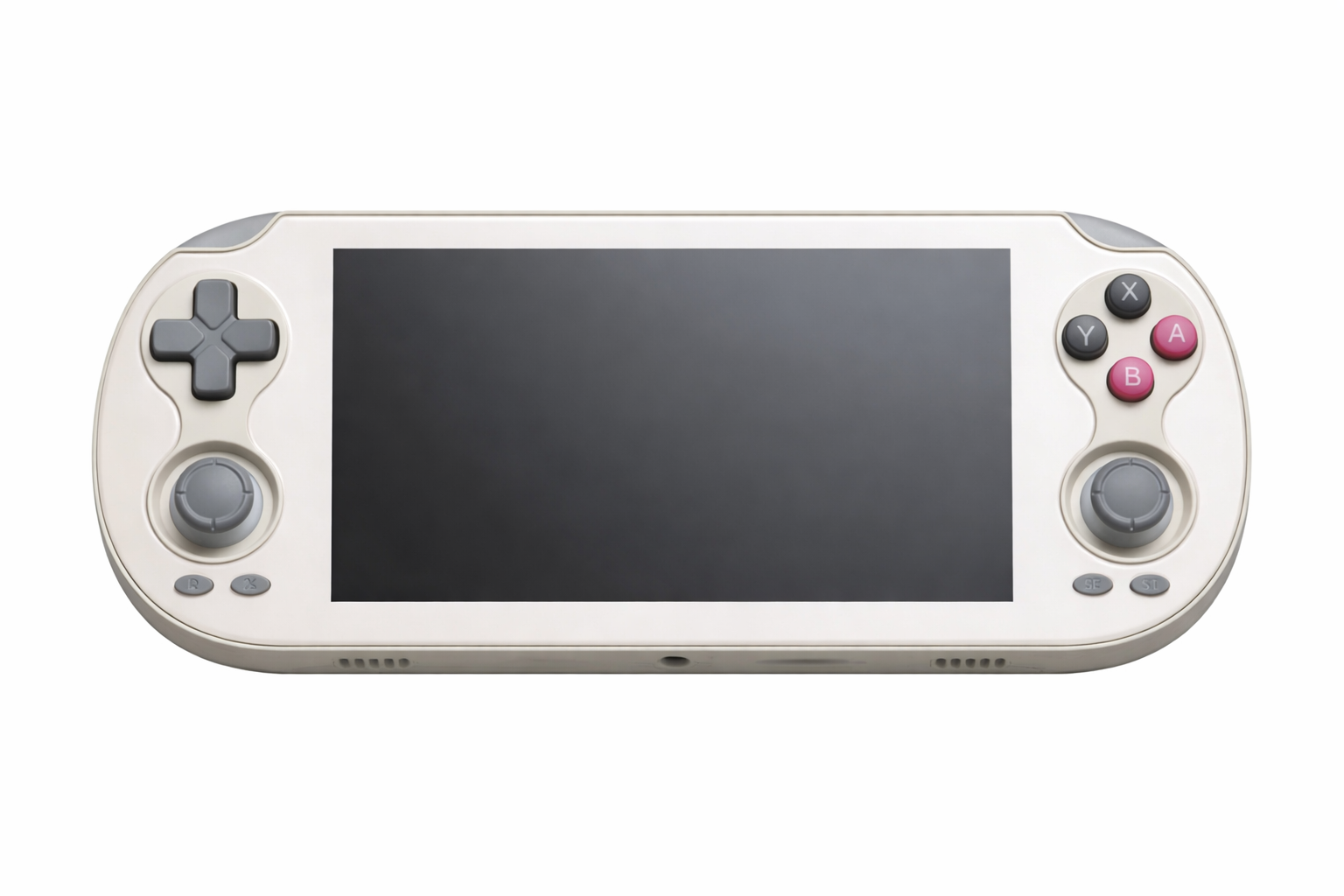
GammaOS Next v1.3.1 (Anbernic RG Vita) Release Notes
Patreon Exclusive Release
Password obtained from Patreon for GammaOS Insider tier supporters: https://www.patreon.com/posts/156709356This release will become publicly available to non-supporters after the Patreon early access window. The password will be shared once the public release is live on 26 June 2026.
Release Date: 28th April 2026.
Full changelog: https://github.com/TheGammaSqueeze/GammaOSNext/wiki/GammaOS-Next-Changelog
Known Issues
- GammaOS Full includes Google Services and will feel slower than Lite on first boot. After initial setup, sign into Google, then leave the device powered on with WiFi and screen on for a few hours so Google can finish pushing updates. Performance normalises once those updates settle.
- First boot can take 1 to 3 minutes and may appear to hang on the Anbernic logo. This is normal while Android optimises the system for the first time.
Before You Download
This release is installed by flashing a .pac file using UnisocTools on a Windows PC.
The archive contains both the Lite and Full .pac files. Choose the one that suits you:
- GammaOS Lite (recommended) - no Google Services, best performance and battery life.
- GammaOS Full - includes Google Services, useful for Play Store and streaming apps.
What You Need
- Windows PC with USB cable.
- 7-Zip (or another archive tool) to extract split
.7zarchives. - UnisocTools - contains USB drivers and the flashing utility. Download
UnisocTools_RG_VITA.zipfrom the assets below. - Microsoft Visual C++ Redistributable (latest, 2005, 2008, and 2010 versions, both x86 and x64):
https://learn.microsoft.com/en-us/cpp/windows/latest-supported-vc-redist
Downloads
Download all six parts of the firmware archive plus the UnisocTools:
RG_VITA_GammaOS_v1.3.1.7z.001RG_VITA_GammaOS_v1.3.1.7z.002RG_VITA_GammaOS_v1.3.1.7z.003RG_VITA_GammaOS_v1.3.1.7z.004RG_VITA_GammaOS_v1.3.1.7z.005RG_VITA_GammaOS_v1.3.1.7z.006UnisocTools_RG_VITA.zip
Place all six .7z parts in the same folder, then right-click the .7z.001 file and choose "7-Zip -> Extract Here".
Extracts to:
RG_VITA_GammaOS_Lite_v1.3.1.pac- Lite edition (no Google Services)RG_VITA_GammaOS_Full_v1.3.1.pac- Full edition (with Google Services)
Installation Instructions
Step 1: Install USB Drivers
If you have flashed your device previously using this guide, your drivers should already be installed. You can skip this step.
- Extract
UnisocTools_RG_VITA.zipand open the UnisocTools folder. - Navigate to the UnisocDrivers subfolder.
- Run the driver installer (
DPInst64.exeor whichever installer is provided) to install UniSoc/Spreadtrum USB drivers.- On Windows 11, the Windows 10 driver package works fine.
- After installation, you should see UniSoc-related drivers listed in Device Manager once a device is connected in bootloader mode.
Step 2: Prepare the Firmware Archive
- Download all six parts of the archive from the assets below.
- Place them in the same folder, right-click on the
.7z.001file and choose "7-Zip -> Extract Here". - After extraction, you will have both the Lite and Full
.pacfiles. Choose the one you want to flash.
Step 3: Flash the Firmware
- In the UnisocTools/SPRD_Download_Tool folder, locate and run
UpgradeDownload.exe. - In the Flash Tool window, click Load Packet (or the folder icon).
- Browse to the folder you extracted and select the
.pacfile you want to flash (Lite or Full). - The tool will parse the file and display information like device name and firmware version. Confirm it matches.
- Ensure your device is powered off and no USB cable is connected.
- Click the Play/Start button in
UpgradeDownload.exe. - Hold down the Back button AND the Anbernic button next to the Back button, and while holding both, connect the USB cable to your PC. The flash tool will detect the device in "Download" mode.
- The flashing process will begin. You will see a progress bar - do not disconnect or power on during this step.
- Once flashing completes, the tool will show a "Passed" or "OK" or "Reset" status. The device will automatically reboot and perform an internal format (factory reset). Disconnect your USB cable after this point.
- Let the device finish formatting and then reboot. It will boot into GammaOS Next on its first launch, which can take up to 2-3 minutes as it initializes.
Step 4: Initial Setup
- First Boot takes a bit longer. Be patient while Android sets up file systems and initial configurations.
- Follow the on-screen prompts to complete initial setup.
- Once setup completes, you will land on the GammaOS Next home screen. You are all set!
Troubleshooting Tips
- If the flash tool fails to detect your device, verify:
- USB drivers were installed correctly.
- The Back button and the Anbernic button are held down firmly during connection.
- USB cable and port are functional.
- If the device does not boot into GammaOS Next after flashing:
- Double-check that you used the correct
.pacfile. - Ensure the device filesystem was formatted (it may reboot and re-format automatically).
- Try re-flashing.
- Double-check that you used the correct
- For any errors or unexpected behavior, post details (error messages, device model) on the GammaOS Next GitHub Issues page.
Additional Notes
- This is a fresh install only and will wipe your device. Back up your data first.
- If you plan to use streaming apps (Netflix, Prime Video, etc.), use Full and keep the system updated. Otherwise, Lite is recommended for best overall responsiveness and battery life.
Stock Firmware / Unbricking
If your device fails to boot or you want to return to stock Anbernic Android, you can flash the factory image:
- Stock image: https://drive.google.com/file/d/1bgenKjxYMUcs4gThPzHY3r0WEq8jFZs9/view?usp=sharing
- Use
UpgradeDownload.exefrom the UnisocTools package. - Use the same button combination for download mode: hold Back + Anbernic button, then connect USB.
v1.3.1 Features and Improvements (RG Vita)
- GammaOS Nano boot-to-game: An ultra-fast native boot menu (XMB-style) that can launch directly into RetroArch or DraStic within seconds of powering on. Designed to deliver a pickup-and-play experience. Activate Nano by holding down the Power button and choosing Boot Nano at the bottom of the power menu.
- Native OTA updates: The device can now pull updates directly from
ota.gammaos.shand apply them in place via the built-in Updater, with separate channels for Lite and Full builds. - GammaPad native gamepad daemon: A new userspace gamepad engine that handles input mapping, per-app profiles, and Screen Mapping with lower latency and fewer compatibility issues in emulators and Android games.
- GammaOS Toolbox: A new dedicated app to manage gaming features, shaders, performance profiles, and GammaOS-specific settings in one place.
- GammaShader: Optional post-processing shader stack (CRT-Simple, LCD3x, and more) for authentic retro display effects.
- GammaEQ: System-wide audio equalizer with improved output tuning and per-profile support.
- GammaRGB: In-process SurfaceFlinger sampler for joystick LED reactive lighting that matches on-screen colours.
- Platform fixes: Numerous bug fixes on top of the Android 14 / LineageOS 21 base, including input, audio, sleep/resume, and WiFi stability improvements.
Overview
GammaOS Next v1.3.1 for the Anbernic RG Vita is a full Android 14 / LineageOS 21 distribution tuned specifically for handheld gaming and emulation on the Unisoc T820 platform.
This is the first GammaOS Next release for the RG Vita. It ships with GammaOS Nano, the native OTA update system, GammaPad, GammaShader, GammaEQ, GammaRGB, and the new GammaOS Toolbox, alongside platform-level performance and stability improvements.
Both Full (Google Apps included) and Lite (no Google services, maximum performance and battery efficiency) builds are available.
Key Features
GammaOS Nano: Instant Boot-to-Game
Nano is a native XMB-style launcher that comes up before the full Android desktop. It can auto-resume directly into a DraStic or RetroArch session within a few seconds of pressing power, making the handheld behave more like a dedicated gaming device.
How to enable Nano: Hold down the Power button to bring up the power menu, then choose Boot Nano at the bottom of the list. The device will restart directly into the Nano experience.
Switching menu layouts (L1): Once inside Nano, press L1 to toggle between the two built-in menu styles:
- XMB mode - the full PlayStation-style cross-media bar with columns, settings overlays, and battery/time/WiFi/BT HUDs across the top.
- List mode - a simpler, vertical list view for people who prefer something more compact and keyboard-like.
Your choice is remembered across reboots (persisted via persist.gammaos.nano.xmb_mode).
Quick Resume (R1): Nano has a built-in Quick Resume feature that can pick your last game up right where you left off, even across a full power-off. Press R1 inside the Nano menu to toggle it on or off - the green/red dot and "Quick Resume" indicator in the top-right corner of the menu shows the current state.
How Quick Resume works:
- When Quick Resume is ON and you are playing a game (RetroArch or DraStic) and shut down or reboot, the system automatically sends an ESC to the emulator so it saves state cleanly, then records the exact ROM and core you were playing.
- On the next power-on into Nano, the menu detects the saved state, briefly shows a "Quick Resuming..." overlay with the ROM name, and drops you straight back into the game within seconds - no menu navigation required.
- During the Quick Resume preview:
- Short-press BACK hides the "Quick Resuming..." overlay text so you can keep playing on the live preview with no visual clutter.
- Long-press BACK (hold for 3 seconds) exits the game and drops you back to the Nano menu.
- All other buttons (including SELECT) are forwarded to the game as normal input, so you can resume playing without interruption.
- Quick Resume is primed the moment a game is launched (not only at shutdown), so it survives even unclean reboots and battery pulls.
- When you exit a game back to the Nano menu normally, Quick Resume is cleared so the next boot opens the menu instead of relaunching.
Native OTA Updates
The device now checks ota.gammaos.sh for newer builds and applies them in place. Separate Lite and Full update channels are handled automatically based on the build flavour installed.
GammaPad
A userspace gamepad daemon with per-app profiles, input remapping, and Screen Mapping, giving lower-latency and more consistent behaviour across emulators, Android games, and cloud streaming apps.
GammaOS Toolbox
A single app for managing gaming features, shaders, performance profiles, and GammaOS-specific settings.
GammaShader, GammaEQ, GammaRGB
- GammaShader: CRT-Simple, LCD3x and other shader effects for retro-accurate visuals.
- GammaEQ: System-wide audio equalizer for consistent audio tuning across apps.
- GammaRGB: Joystick LED lighting that reacts to what is on screen.
Stability and Platform Fixes
Several device-level issues on RG Vita have been addressed, including audio, input, and sleep/resume reliability.
Support
For assistance or feedback, please open an Issue here:
https://github.com/TheGammaSqueeze/GammaOSNext/issues
Thank you for supporting GammaOS development and helping improve GammaOS Next for the Anbernic RG Vita.