
中文 | English
中文
OxideTerm 2.1.0 带来了跨主机混合分屏、可重复使用的本地终端配置、更直观的主题预览,以及可折叠的串口和 tmux 控制栏,同时改善了持续输出处理、AI 消息编辑和原生窗口体验。祝大家中秋节快乐!感谢你让 OxideTerm 成为日常工作的一部分。

🪟 跨主机、跨窗口的混合工作区
- 一个标签页现在最多可以容纳四个窗格。本地、SSH、Mosh 终端可以与 SFTP、编辑器、端口转发页面组合,也可以来自不同主机。例如,本地开发终端、远程终端、远程文件和编辑器可以放在同一个布局中协作。
- 新增按边缘放置标签页的交互。将一个标签拖入另一个页面的内容区域,在左、右、上、下边缘松开,即可放到目标窗格旁边。拖动过程中会显示落点预览,组合后的分隔线仍可调整。
- 组合工作区可以整体移到独立窗口,也可以返回主窗口,保留正在运行的会话和分屏布局。移动页面时保留原有会话与页面身份,无需重新建立连接。
- 文件浏览、传输对话框、端口转发操作、键盘焦点和输入路由都与发起操作的窗格及窗口关联。多个文件或转发页面可以保留各自的工作状态;已关闭页面的延迟操作不会误作用到其他页面。
- 窗格相关命令、文件操作和 AI 上下文会跟随混合工作区中当前聚焦的页面。读取多个终端的上下文时,会区分各窗格对应的会话、目标主机和运行环境。
- 串口终端因设备独占访问继续使用独立标签页。混合工作区支持上述终端与工具页面,本次没有将所有应用页面都开放为可分屏窗格。
使用方法:先打开需要的终端或工具页面,将其中一个标签拖到另一个页面的边缘,再按需要继续组合。希望将整组工作放到另一块屏幕上时,可以把组合标签移到新窗口。
💻 可保存的本地终端配置
- 本地终端现在也可以像远程连接一样保存配置,记录名称、命令行环境、起始目录、分组、图标、图标颜色和背景色,方便重新打开常用项目。
- 支持仅连接、仅保存、保存并连接三种操作。仅保存时不要求当前机器已经具备对应环境或目录;实际打开时会先检查启动目标,明确提示环境或目录不可用,避免先创建一个注定失败的会话。
- 本地终端配置已接入会话管理器的搜索、分组、编辑、删除和批量分组操作。打开保存的配置时,也会记录其使用情况。
- 云同步的选择与预览已包含本地终端配置,支持字段差异、冲突合并和删除记录处理。同步的是启动配置,打开它的机器仍需具备对应的命令行环境和目录。
- 新建本地分屏会继承来源终端的启动环境,并在能够取得当前目录时使用该目录。WSL 的起始目录通过其启动参数传入,包含空格的路径也会作为完整参数处理。
- 活动会话侧栏将本地终端集中到一个“本地终端”分组中,数量按正在运行的本地会话统计。每个子项保留自身标题和图标,“新建终端”入口放在现有终端列表底部。
使用方法:在新建连接中选择本地终端,设置命令行环境和工作目录,填写名称并保存。以后即可从会话管理器重新打开,不必每次重复选择。
🎨 主题预览与连接图标
- 主题列表新增配色色板,并与终端示例预览联动。鼠标悬停时可以先查看主题效果,点击或确认后才应用到工作区。
- 支持使用上下方向键、Home、End 浏览并预览主题;Enter 或空格确认,Escape 或 Tab 关闭列表而不应用预览。打开列表时会定位到当前主题。
- 自定义主题预览读取实际配置的背景、前景、光标及所展示的 ANSI 颜色。预览标签与操作提示也会跟随应用语言。
- 新增保留原始色彩的 Ubuntu、Debian、Arch Linux、Linux Mint、Gentoo、Rocky Linux 和 NixOS 发行版图标。SSH 会话可以根据识别到的远程发行版选择图标;明确指定的自定义图标优先显示。
- SSH 连接属性中的“自动”和“自定义”图标选项更加明确。选择后自动收起图标列表,自动模式会解释图标与远程系统的关系。发行版图标的来源说明与许可文件已包含在安装包中。
🎛️ 更清爽、可折叠的串口与 tmux 控制栏
- 将密集的胶囊按钮改为轻量文字控件与短竖线分隔,与终端命令栏的风格保持一致。已开启的设置、当前会话和当前窗口使用主题强调色,不可用操作保持淡化显示。
- 工具栏分为信息行和操作行。串口上行显示连接名称、设备参数、连接状态和端口状态,下行提供发送模式、显示模式、收发换行、回显、刷新、Break、DTR、RTS。tmux 控制模式上行显示会话、窗口和状态,下行提供重命名、命令、切换、新建、分屏、尺寸调整、关闭及分离操作。
- 信息行最左侧新增固定折叠箭头,可隐藏或恢复下方操作行,并始终保留连接信息。每个窗格在本次运行期间独立保留展开状态,终端可用高度随工具栏同步调整。
- 两行可以独立横向滚动,折叠箭头保持可见。终端内容边界和 tmux 消息位置也会跟随当前工具栏高度更新。
- 修复侧栏终端子项的选中与悬停背景在右侧超出父级的问题。各连接类型共用的终端条目现在保留左侧树形缩进,并在不同侧栏宽度下与父级右边缘对齐。
⚡ 终端输出与画面快照性能
- 对长 CSI 参数序列、DEC 线条字符和 OSC 内容采用批量处理,减少重复的逐字节操作。
- macOS 新增有容量上限的 PTY 预读,改善持续大量输出;构建画面快照时复用对比度计算结果及共享元数据。
- 修复 SSH 解析器忙碌时,界面读取 tmux 状态仍需等待解析锁的问题。延后的输出会继续安排重绘,最后一段输出无需等待下一个数据包才能显示。
**OxideTerm 2.1.0 实测结果:**每项测试处理 16 MiB 数据,预热 1 次,正式测量 3 次,下表列出耗时和吞吐量各自的中位数。测试时间:2026-09-25 17:35:10 UTC。
| 测试场景 | 耗时中位数(ms) | 吞吐量中位数(MiB/s) |
|---|---|---|
纯文本(plain)
| 111.104 | 144.009 |
ANSI(ansi)
| 131.939 | 121.268 |
Unicode(unicode)
| 146.536 | 109.188 |
长 CSI 序列(long-csi)
| 124.260 | 128.763 |
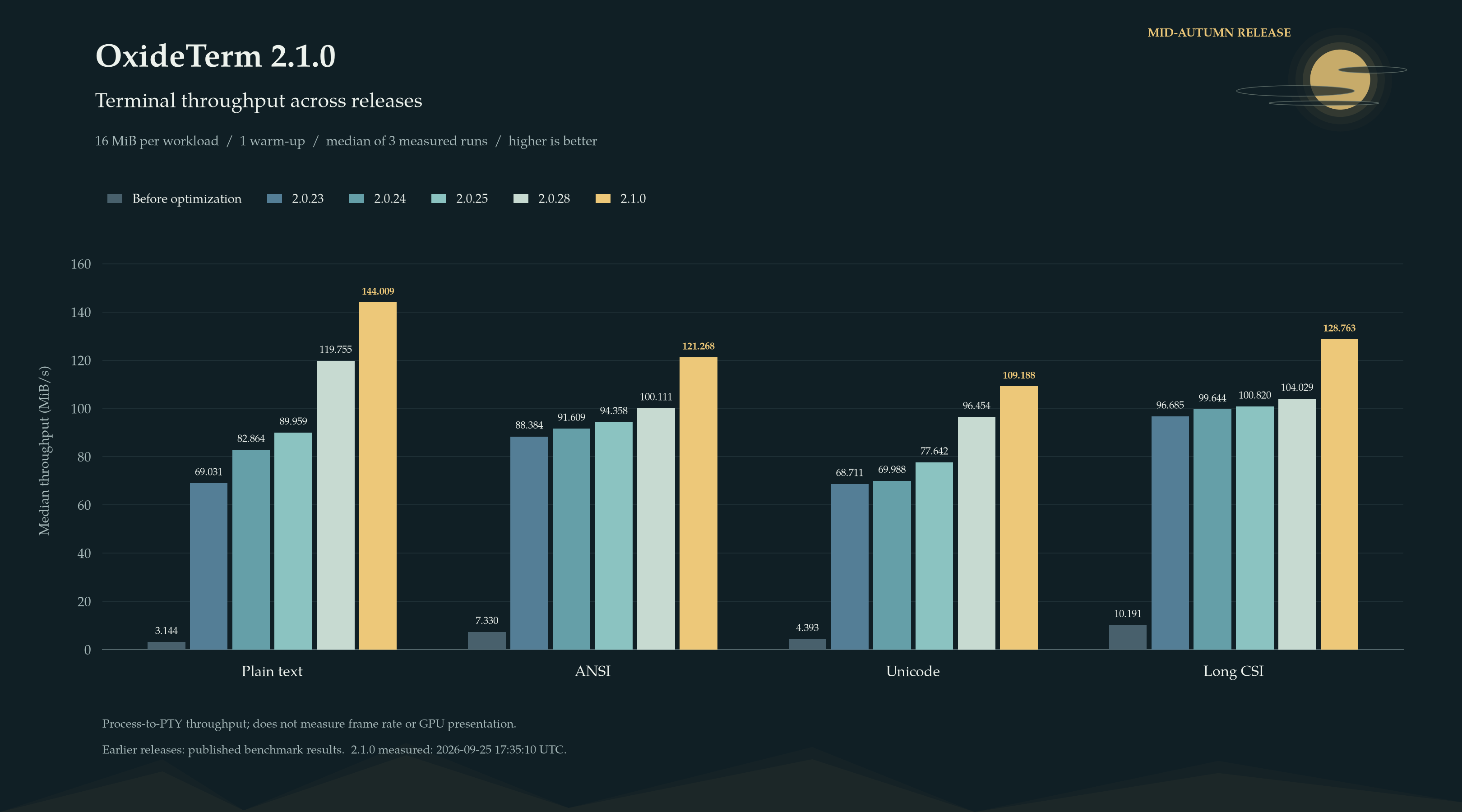
下图与此前发布的基准结果并列展示,金色为 2.1.0。本测试测量进程到伪终端的吞吐量,不代表画面帧率或 GPU 呈现速度。
🤖 AI 消息编辑与输入
- 历史消息支持多行编辑,包括主动换行、自动折行和有高度上限的纵向编辑区域。长消息编辑时会保持光标可见。
- 鼠标定位、文本选择、上下移动光标和输入法候选位置与实际显示的文本行保持一致,已通过针对 Unicode、空行、自动折行及主动换行边界的检查。
- 修正 AI 侧栏输入框按实际折行定位鼠标的问题。在混合工作区中,AI 上下文和工具目标跟随当前内容页面,并区分各终端的运行环境。
🛠️ 原生窗口与安装修复
- 启动阶段尚未获得显示器信息时,保留有效的已保存窗口尺寸,包括 Wayland 启动路径。临时启动尺寸不会再提前裁小保存的窗口;已知显示器边界限制和首次启动默认值继续生效。
- Windows 从托盘恢复时仅对最小化窗口执行还原。隐藏前处于最大化或全屏的窗口重新显示时,会保留原有尺寸和状态。
- Windows 安装器会在覆盖所选安装目录前检查占用文件的应用,先询问是否请求正常关闭,再确认文件已释放。关闭失败可重试,取消操作或静默安装发生占用冲突时会停止;分阶段自动更新流程保持原有行为。
- 安装提示及新增界面文案已同步维护现有 11 种语言。
🧪 验证与平台范围
- 开发验证覆盖终端解析、网格行为、真实本地 PTY 协议回复与退出清理、SSH 输出绘制、tmux 交互、工具栏折叠与恢复、主题预览数据和侧栏行布局。最终终端视图测试通过 221 项,另有 1 项手动测试未纳入常规执行;应用全目标检查通过。此前性能验证还通过了终端和网格测试、VTE 全特性及固定缓冲区配置测试,以及原生应用构建。
- 本次性能测量来自 Apple M5 上的 macOS 环境。Windows 原生运行和 Ubuntu Wayland 环境下的平台专项实机验证仍待完成,自动化与无界面检查不能替代这些平台验证。
English
OxideTerm 2.1.0 expands the workspace with mixed panes across hosts, reusable local terminal profiles, richer theme previews, and collapsible serial and tmux control bars. It also improves sustained terminal output processing, AI message editing, and native window behavior. Happy Mid-Autumn Festival! Thank you for making OxideTerm part of your everyday work.
🪟 Mixed Workspaces Across Hosts and Windows
- Added mixed workspaces with up to four panes in one tab. Local, SSH, and Mosh terminals can sit alongside SFTP, IDE, and port-forwarding pages, including pages connected to different hosts. A local development shell, a remote shell, remote files, and an editor can now share one working layout.
- Added edge-based tab placement. Drag a tab into another tab's content and drop it near the left, right, top, or bottom edge to place it beside the destination pane. A placement preview shows where it will land, and existing split dividers remain adjustable.
- Allowed a combined workspace to move into a separate native window and return to the main window while retaining its live sessions and split layout. Moving a page preserves its session and page identity rather than creating another connection.
- Kept file browsing, transfer dialogs, forwarding controls, keyboard focus, and input routing associated with their originating pane and window. Multiple SFTP or forwarding pages can retain their own working state, and a delayed action from a closed page does not fall through to another page.
- Updated pane-aware commands, file actions, and AI context to follow the focused content page within a mixed workspace. Multi-terminal context distinguishes each pane's session, target, and environment.
- Serial terminals remain separate tabs because their device access is exclusive. Mixed workspaces support the terminal and page types listed above; this release does not turn every application page into a splittable pane.
To try it: open the terminals or tool pages you need, drag one tab to an edge of another page, then repeat until the layout contains the desired panes. Move the combined tab to a new window when you want that workspace on another display.
💻 Reusable Local Terminal Profiles
- Added saved local terminal profiles alongside saved remote connections. Profiles retain a name, command-line environment, starting directory, group, icon, foreground color, and icon background, making frequently used projects easier to reopen.
- Added connect-only, save-only, and save-and-connect flows. Saving a profile does not require its selected environment or directory to exist on the current machine; opening it validates the launch target and reports an unavailable environment or directory before registering a failed session.
- Integrated local profiles with session-manager search, groups, editing, deletion, and batch group operations. Opening a saved profile also records its usage through the existing profile store.
- Included local profiles in cloud-sync selection and previews, including field-level changes, conflict merging, and deletion records. A synchronized profile remains a launch configuration; the required command-line environment and directory must be available on the machine that opens it.
- Made new local splits inherit the source terminal's launch environment and use its known current directory when available. WSL starting directories are passed through the WSL launch arguments, including paths containing spaces.
- Grouped running local terminals under one Local Terminal entry in the active-session sidebar. The count reflects running local sessions, each child keeps its own title and icon, and New Terminal appears below the existing terminals.
To create a reusable entry, choose Local Terminal in the connection form, select the environment and working directory, give it a name, and save it. Open it later from the session manager like other saved configurations.
🎨 Theme Discovery and Connection Icons
- Added palette swatches to the theme selector and a live terminal preview. Hovering a theme previews its colors without applying it to the workspace; clicking or confirming the selection applies it.
- Added keyboard preview navigation with Up, Down, Home, and End. Enter or Space confirms the previewed theme; Escape or Tab closes the selector without applying the preview. Opening the selector brings the current selection into view.
- Made custom-theme previews use their configured background, foreground, cursor, and displayed ANSI colors. Preview labels and guidance now follow the selected application language.
- Added color-preserving Linux distribution icons for Ubuntu, Debian, Arch Linux, Linux Mint, Gentoo, Rocky Linux, and NixOS. SSH sessions can select an icon from the detected remote distribution, while an explicitly chosen custom icon takes precedence.
- Clarified Automatic and Custom icon choices in SSH connection properties. Selecting either mode closes the icon picker, and the automatic mode explains how the remote system determines the icon. Distribution artwork attribution and licenses are included in packaged builds.
🎛️ Clearer Serial and tmux Control Bars
- Replaced the dense capsule-button presentation with lightweight text controls and short vertical separators, matching the terminal command bar's visual style. Active settings, sessions, and windows use the theme's accent color; unavailable operations remain visually disabled.
- Split each toolbar into two rows. Serial connection details, device parameters, connection state, and port presence appear above the send/display modes, line-ending settings, local echo, refresh, Break, DTR, and RTS controls. In tmux control mode, sessions, windows, and status appear above rename, command, navigation, creation, split, resize, close, and detach actions.
- Added a fixed disclosure arrow at the far left of the information row. It hides or restores the lower action row while keeping connection information visible. Each pane retains its own expanded state during its lifetime, and the terminal viewport grows or shrinks with the toolbar.
- Gave the two rows independent horizontal scrolling, with the disclosure arrow staying reachable. Updated the terminal's content bounds and tmux message placement to account for the current toolbar height.
- Aligned child-terminal selection and hover backgrounds with their parent row's right edge across connection types, retaining the left tree indentation at narrow and wide sidebar sizes.
⚡ Terminal Output and Snapshot Performance
- Batched long CSI parameter sequences, DEC line-drawing character runs, and OSC payload collection to reduce repeated per-byte work.
- Added bounded PTY read-ahead on macOS for sustained output, and reused contrast-adjusted styles and shared metadata when building terminal snapshots.
- Fixed an SSH rendering stall caused by reading tmux state while the parser was busy. Deferred output continues to schedule a redraw so the final received output can appear without waiting for another packet.
OxideTerm 2.1.0 benchmark: each workload processes 16 MiB, with 1 warm-up and 3 measured runs. The table reports the median elapsed time and median throughput. Run time: 2026-09-25 17:35:10 UTC.
| Workload | Median elapsed time (ms) | Median throughput (MiB/s) |
|---|---|---|
Plain text (plain)
| 111.104 | 144.009 |
ANSI (ansi)
| 131.939 | 121.268 |
Unicode (unicode)
| 146.536 | 109.188 |
Long CSI (long-csi)
| 124.260 | 128.763 |
The chart places these results alongside the previously published benchmarks, with 2.1.0 highlighted in gold. These measurements cover process-to-PTY throughput, not frame rate or GPU presentation.
🤖 AI Message Editing and Input
- Added multiline editing for historical messages, including explicit newlines, visual wrapping, and a bounded vertical editing area. Long edits keep the caret visible instead of being squeezed into a single-line field.
- Aligned mouse placement, selection, vertical caret navigation, and IME candidate positioning with the displayed text rows. Unicode text, empty lines, and both soft-wrap and explicit-newline boundaries are covered by focused checks.
- Corrected the AI sidebar composer's hit testing to use its visual wrapped lines. In mixed workspaces, AI context and tool targeting follow the active content page and identify individual terminal environments.
🛠️ Native Window and Installer Fixes
- Preserved valid saved window dimensions when display information is not yet available during startup, including the Wayland startup path. A temporary bootstrap size no longer prematurely clips the saved size; known-display constraints and first-launch defaults remain in place.
- Updated Windows tray restoration to restore only minimized windows. A hidden maximized or fullscreen window keeps its existing size and state when shown again.
- Added a Windows installer preflight for applications holding files in the selected installation directory. The installer asks before requesting a normal shutdown, verifies that files are released before overwriting, offers retry when needed, and stops on cancellation or a silent-mode conflict. The staged automatic-update path remains unchanged.
- Localized the installer prompts and all new application labels across the existing 11 languages.
🧪 Validation and Platform Scope
- Development validation covered terminal parsing, grid behavior, real local PTY replies and shutdown, SSH output rendering, tmux interaction, toolbar collapse/restore, theme preview data, and sidebar row geometry. The final terminal-view suite passed 221 tests with one manual test excluded; application all-target checks passed. Earlier performance validation also passed the terminal and grid suites, VTE all-feature and fixed-buffer configurations, and the native application build.
- The reported performance measurements were collected on macOS with an Apple M5. Native Windows execution and Ubuntu Wayland runtime validation for the platform-specific fixes remain pending. Automated and headless checks do not replace those platform checks.
📥 Download for your system
| Operating system | x64 | ARM64 |
|---|---|---|
| Windows | Setup (.exe) | Setup (.exe) |
| macOS | DMG (Intel) | DMG (Apple Silicon) |
| Linux | AppImage · DEB · RPM | AppImage · DEB · RPM |
Portable archives, signatures, and Downloaded If SmartScreen warns, click More info -> Run anyway.
若 SmartScreen 弹出警告,点击 更多信息 -> 仍要运行。
sha256sums.txt remain available in the release assets below.
📌 Installation Tips / 安装提示
macOS
.dmg files may be quarantined by Gatekeeper. Run in Terminal:
xattr -cr ~/Downloads/OxideTerm_*.dmg
# or after install / 或安装后
xattr -cr /Applications/OxideTerm.app
Windows
Linux
# AppImage
chmod +x OxideTerm_*_linux_*.AppImage && ./OxideTerm_*_linux_*.AppImage

# Debian/Ubuntu
sudo dpkg -i OxideTerm_*_linux_*.deb && sudo apt-get install -f

# Fedora/RHEL-compatible systems
sudo dnf install ./OxideTerm_*_linux_*.rpm
🔗 Links
- Documentation: https://oxideterm.app
- GitHub Issues: https://github.com/AnalyseDeCircuit/oxideterm/issues
- Changelog: https://github.com/AnalyseDeCircuit/oxideterm/blob/main/.github/release-notes/stable-changelog.md