
🎉 OmniConsole — Your Gaming Platform, On Boot.

The Xbox App is no longer the only Xbox Mode / Full Screen Experience (FSE) Home. OmniConsole runs as the Xbox Mode / FSE Home shell — any platform can be your home: Steam Big Picture, Xbox, Epic Games Store, Armoury Crate SE, Playnite, or any custom platform you add.
🌐 Visit the Official Website for the full documentation, features overview, and installation guide.
- Boot straight into your platform — auto-launch on startup; switch anytime via Game Bar's "Library"
- Auto FSE entry — launch from the Start Menu and OmniConsole triggers FSE for you
- Built-in platforms — Steam Big Picture, Xbox, Epic Games Store, Armoury Crate SE, Playnite Fullscreen
- Custom platforms — executable, protocol URI, or packaged MSIX/APPX, with cover image and launch arguments
- Xbox-compatible controller required — XInput controller with an Xbox button (needed for Game Bar, FSE, and all gamepad features)
- Gamepad-first UI — controller navigation across the card-grid Settings, plus a gamepad-compatible file picker for browsing executables
- Gamepad Mouse Mode — turn your controller into a mouse and keyboard, with two layouts (OmniNav / Classic) and three states (Off / Auto / Force On)
- Gamepad Steam Shortcuts — ⧉ button for Steam Big Picture menus; long-press ☰ in-game for the Steam Overlay
- OmniCharm Game Bar Widget — one-tap shortcuts to Task View, Xbox Library, and Steam Overlay; toggle Mouse Mode, controller layout, and cursor speed during gameplay
- Game Bar integration — customize "Home" / "Library" buttons; open OmniConsole Settings without leaving FSE
- Troubleshoot & Environment Snapshot — built-in FSE recovery and a one-click Markdown system report for bug reporting
- In-app updates, multilingual UI — auto-checks GitHub releases; English, 繁體中文, 简体中文
- Compatible with all FSE-enabled devices — native FSE handhelds (ROG Xbox Ally X) and any system using this tool.
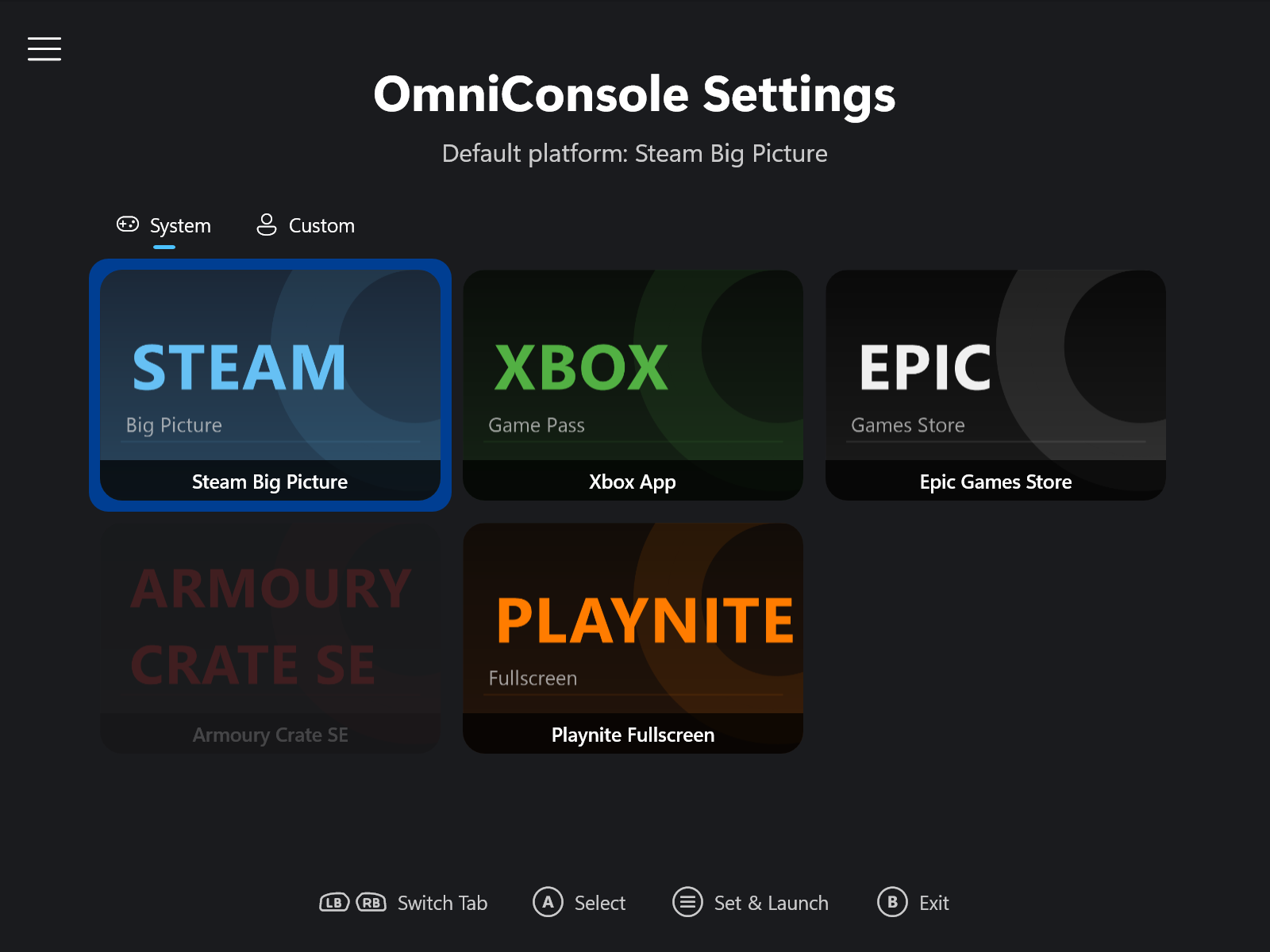 | 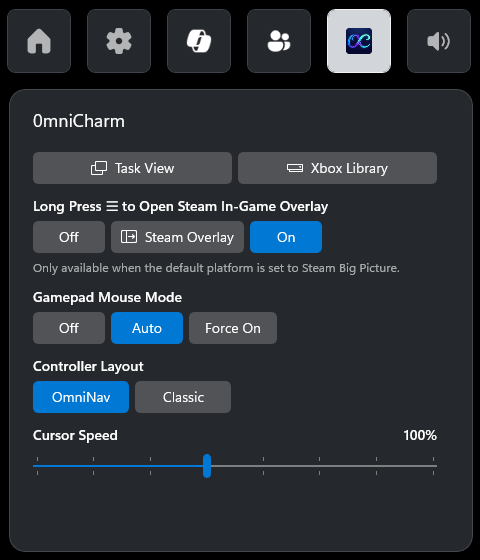 | 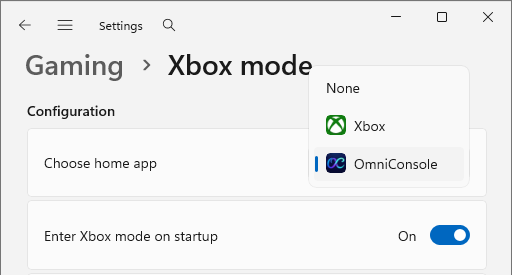 |
| OmniConsole Settings | OmniCharm Game Bar Widget | Settings → Gaming → Full screen experience |
English
💡 Important Findings & Usage Tips
- Unlock the Full Handheld Edition:
- Microsoft's native rollout (24H2 build
26100.8328+, 25H2 build26200.8328+, and Insider Build26220.7271+) is currently a Limited PC edition — noChoose home appsetting, no auto-launch on startup. You're stuck opening it by hand from Task View or the Xbox App. - This tool enables the Full Handheld edition (identical to the ROG Xbox Ally series), unlocking
Choose home app(pick Xbox or OmniConsole), "Enter Xbox mode on startup" / "Enter full screen experience on startup", and the "Restart for better performance" prompt that boots into an optimized performance mode — freeing up memory for actual gameplay.
- Microsoft's native rollout (24H2 build
- Solving Startup Issues:
- For users on older builds whose PC sometimes boots straight to the desktop instead of Xbox Mode (FSE) (the desktop wins the startup race), the recommended fix is to upgrade to a Native build:
- 24H2 Release →
26100.8328+ - 25H2 Release →
26200.8328+ - Insider →
26220.7271+,26300.7674+, or28020.1362+
- 24H2 Release →
- By combining a Native build with this tool's Native Mode (which requires no screen dimensions override), you can achieve a 100% reliable boot into the FSE Shell.
- Upgrade Workflow:
- Recommended: Upgrade Windows to a Native build first, then upgrade this tool. It will automatically apply the Native configuration.
- If you upgrade Windows after upgrading the tool: Simply open the tool and click "Enable" again to migrate to the Native configuration.
- For users on older builds whose PC sometimes boots straight to the desktop instead of Xbox Mode (FSE) (the desktop wins the startup race), the recommended fix is to upgrade to a Native build:
- Gamepad Keyboard for Sign-in Screen (v0.9.0+ Architecture Update) (#5):
- It is highly recommended to check "Simulate touch input on startup to enable the gamepad keyboard". v0.9.0+ introduces a refactored, system-wide touch simulation architecture so the on-screen keyboard reliably pops up with a controller anywhere — including PIN / password entry on the Windows sign-in screen. Tool version v0.9.0+ is strictly required for sign-in screen support.
- Known LogonUI Glitch (The "Wait Strategy"): If you press 'A' too quickly while the system is booting into the sign-in screen, the Gamepad Keyboard (PIN pad) might glitch (pop up and vanish, or fail to appear at all). This is a known bug within Microsoft's
LogonUI.exethat affects even native FSE handheld devices like the ROG Xbox Ally.- Workaround: Do not press 'A' immediately. Wait a few seconds for the sign-in screen to fully initialize (e.g., wait for the Network/Wi-Fi icon in the bottom right corner to become solid, or the Windows Spotlight text to appear) before pressing 'A' to reliably trigger the on-screen keyboard.
- Task View Xbox Icon Broken in Recent Windows Builds (#27):
- Microsoft introduced a regression starting with KB5074105 (Build 26200.7705) that breaks the Xbox integration inside the Task View (the button's Xbox icon is replaced by a generic placeholder glyph and the button no longer launches Xbox Mode / FSE).
- Xbox Mode / FSE itself still works — only the Xbox button inside Task View is affected.
- Resolution: Upgrade Windows to
26100.8328+(24H2) or26200.8328+(25H2) first, then install v0.9.3+ — the installer migrates you to the Native configuration automatically and restores the Xbox icon along with the Task View button's behavior. (If you upgraded Windows after the tool, just open the tool and click Enable again to migrate.)
v0.9.3: Reliable Disable / Re-enable & Xbox Mode Terminology
Caution
⚠️ Early Access build — for early adopters and feedback only.
🔧 Improvements
- Disable and Enable now share a symmetric two-phase Reset + Write flow (#32, #28): clicking either action first clears any existing overrides for the relevant Feature IDs, then writes the target state — resetting first resolves interference from Microsoft's Controlled Feature Rollout (CFR).
- UI and READMEs lead with "Xbox Mode": in line with Microsoft's official naming on Windows PCs, button labels and docs now read "Xbox Mode (FSE)", keeping "Full Screen Experience" as the secondary reference.
- README slimmed and reorganized: the lengthy Screen Dimensions Override for Desktop PCs & Laptops section now lives in its own doc (English / 繁體中文), and the main README now spells out how to enter Xbox Mode (FSE) and how to uninstall the tool via Windows Settings.
🛠️ Installation Instructions
Choose between two installer types.
Setup-0.9.3-Full.msi(Recommended):- Includes everything you need. No prerequisites required.
Setup-0.9.3-Lite.msi:- A smaller download, but requires the .NET 8 Desktop Runtime (x64) to be installed first.
For all users: Download the installer of your choice and run it. It will handle both new installations and upgrades automatically.
中文 (简体)
💡 重要发现与使用技巧
- 解锁掌机完整版 (Full Handheld edition):
- 目前微软推送的原生功能 (24H2 build
26100.8328+、25H2 build26200.8328+、Insider Build26220.7271+) 属于 PC 限制版 (Limited PC edition) — 没有 「选择主页应用」(Choose home app) 设置,也不能 开机自动启动,每次只能自己从 任务视图 (Task View) 或 Xbox App 点进去。 - 本工具能强制开启掌机完整版 Xbox 模式 (FSE) (同 ROG Xbox Ally 系列功能),同时解锁 「选择主页应用」 (可指定 Xbox 或 OmniConsole)、「启动时进入 Xbox 模式」/「启动时进入全屏体验」,以及 「重启以提高性能」(Restart for better performance) 提示框 — 重启进入优化性能模式,腾出更多内存给实际游戏使用。
- 目前微软推送的原生功能 (24H2 build
- 解决开机启动失败:
- 对于在旧版本上遇到开机有时直接进入桌面、没进 Xbox 模式 (FSE) 的用户 (桌面在开机这场赛跑中赢了),最佳解决方案是 升级至原生支持版本 (Native build):
- 24H2 正式版 →
26100.8328+ - 25H2 正式版 →
26200.8328+ - Insider →
26220.7271+、26300.7674+或28020.1362+
- 24H2 正式版 →
- 搭配本工具的 原生模式 (Native Mode) (无需屏幕尺寸覆写),即可 100% 顺利进入 FSE Shell。
- 升级流程建议:
- 推荐: 先升级 Windows 至原生支持版本,再更新本工具,即可自动应用原生设置。
- 若您先安装工具才升级系统: 请在升级后打开工具,再次点击 「启用 (Enable)」 按钮以完成配置迁移。
- 对于在旧版本上遇到开机有时直接进入桌面、没进 Xbox 模式 (FSE) 的用户 (桌面在开机这场赛跑中赢了),最佳解决方案是 升级至原生支持版本 (Native build):
- 登录画面游戏控制器键盘 (v0.9.0+ 架构更新) (#5):
- 强烈建议勾选 「在系统启动时模拟触控输入,以启用游戏控制器键盘」。v0.9.0+ 已全面重构底层架构,实现全局系统级触控模拟,确保能用控制器随时随地叫出虚拟键盘,包括在 Windows 登录画面输入密码或 PIN 码。本工具 v0.9.0+ 是登录画面支持的必要条件。
- 已知 LogonUI 故障 (「等待策略」):若您在系统刚开机进入登录画面时太快按下控制器上的 'A' 键,游戏控制器键盘 (PIN 码面板) 可能会发生故障 (闪现后消失或完全不出现)。这是微软
LogonUI.exe本身的已知 Bug,即便是原生的掌机设备 (如 ROG Xbox Ally) 也会遇到相同的状况。- 解决方案:请勿在画面一出现时立刻按 'A' 键。请等待几秒钟让登录画面完全初始化 (例如观察右下角网络图标变为稳定,或 Windows 背景聚焦文字出现后) 再按下 'A' 键,即可稳定叫出虚拟键盘。
- 最新 Windows 版本中任务视图 (Task View) Xbox 图标失效 (#27):
- 微软从 KB5074105 (Build 26200.7705) 开始导入了一个 Regression Bug,导致任务视图内的 Xbox 按钮整合失效 (Xbox 图标被替换为通用占位图标,按钮也无法启动 Xbox 模式 / FSE)。
- Xbox 模式 / FSE 本身仍可正常运作 — 受影响的只是任务视图界面里那颗 Xbox 按钮。
- 解决方案:先将 Windows 升级至
26100.8328+(24H2) 或26200.8328+(25H2),再安装本工具 v0.9.3+ — 安装程序会自动迁移至原生配置,恢复 Xbox 图标与任务视图按钮的正常行为。(若您是先升级工具、后升级 Windows,只需打开工具再次点击 「启用」 即可完成迁移。)
v0.9.3:稳定的禁用 / 重新启用流程与 Xbox 模式术语更新
Caution
⚠️ 抢先体验版本 — 仅供尝鲜与意见反馈用途。
🔧 改进
- 「禁用」与「启用」改用对称的「重置 + 写入」两阶段流程 (#32, #28):按下其中任一动作,会先清除相关功能 ID 的既有覆写,再写入目标状态 — 先重置再写入,解决微软 Controlled Feature Rollout (CFR) 的干扰。
- UI 与 README 以「Xbox 模式」为主:配合微软在 Windows PC 上的正式命名,按钮文字与文档统一改写为 「Xbox 模式 (FSE)」,「全屏体验 (FSE)」退居次要名称。
- README 精简与重整:冗长的「为台式机与笔记本覆写屏幕尺寸」章节移至专属文档 (English / 繁中),主 README 则新增明确说明:如何进入 Xbox 模式 (FSE)、如何通过 Windows 设置卸载本工具。
🛠️ 安装说明
可选择以下两种安装程序。
Setup-0.9.3-Full.msi(推荐):- 已包含所有必要组件,无需安装任何前置需求。
Setup-0.9.3-Lite.msi:- 文件较小,但需要先安装 .NET 8 桌面运行环境 (x64)。
所有用户:请直接下载偏好的安装程序并运行即可。它会自动处理全新安装与版本升级。
中文 (繁體)
💡 重要發現與使用技巧
- 解鎖掌機完整版 (Full Handheld edition):
- 目前微軟推送的原生功能 (24H2 build
26100.8328+、25H2 build26200.8328+、Insider Build26220.7271+) 屬於 PC 限制版 (Limited PC edition) — 沒有 「選擇主畫面應用程式」(Choose home app) 設定,也不能 開機自動啟動,每次只能自己從 工作檢視 (Task View) 或 Xbox App 點進去。 - 本工具能強制開啟掌機完整版 Xbox 模式 (FSE) (同 ROG Xbox Ally 系列功能),同時解鎖 「選擇主畫面應用程式」 (可指定 Xbox 或 OmniConsole)、「啟動時進入 Xbox 模式」/「啟動時進入全螢幕體驗」,以及 「重新啟動以提升效能」(Restart for better performance) 提示方塊 — 重啟進入最佳化效能模式,騰出更多記憶體給實際遊戲使用。
- 目前微軟推送的原生功能 (24H2 build
- 解決開機啟動失敗:
- 對於在舊版本上遇到開機有時直接進入桌面、沒進 Xbox 模式 (FSE) 的使用者 (桌面在開機這場賽跑中贏了),最佳解決方案是 升級至原生支援版本 (Native build):
- 24H2 正式版 →
26100.8328+ - 25H2 正式版 →
26200.8328+ - Insider →
26220.7271+、26300.7674+或28020.1362+
- 24H2 正式版 →
- 搭配本工具的 原生模式 (Native Mode) (無需螢幕尺寸覆寫),即可 100% 順利進入 FSE Shell。
- 升級流程建議:
- 推薦: 先升級 Windows 至原生支援版本,再更新本工具,即可自動套用原生設定。
- 若您先安裝工具才升級系統: 請在升級後開啟工具,再次點選 「啟用 (Enable)」 按鈕以完成設定遷移。
- 對於在舊版本上遇到開機有時直接進入桌面、沒進 Xbox 模式 (FSE) 的使用者 (桌面在開機這場賽跑中贏了),最佳解決方案是 升級至原生支援版本 (Native build):
- 登入畫面遊戲控制器鍵盤 (v0.9.0+ 架構更新) (#5):
- 強烈建議勾選 「在系統啟動時模擬觸控輸入,以啟用遊戲控制器鍵盤」。v0.9.0+ 已全面重構底層架構,實現全域系統級觸控模擬,確保能用控制器隨時隨地叫出虛擬鍵盤,包括在 Windows 登入畫面輸入密碼或 PIN 碼。本工具 v0.9.0+ 是登入畫面支援的必要條件。
- 已知 LogonUI 故障 (「等待策略」):若您在系統剛開機進入登入畫面時太快按下控制器上的 'A' 鍵,遊戲控制器鍵盤 (PIN 碼面板) 可能會發生故障 (閃現後消失或完全不出現)。這是微軟
LogonUI.exe本身的已知 Bug,即便是原生的掌機裝置 (如 ROG Xbox Ally) 也會遇到相同的狀況。- 解決方案:請勿在畫面一出現時立刻按 'A' 鍵。請等待幾秒鐘讓登入畫面完全初始化 (例如觀察右下角網路圖示變為穩定,或 Windows 背景焦點文字出現後) 再按下 'A' 鍵,即可穩定叫出虛擬鍵盤。
- 最新 Windows 版本中工作檢視 (Task View) Xbox 圖示失效 (#27):
- 微軟從 KB5074105 (Build 26200.7705) 開始導入了一個 Regression Bug,導致工作檢視內的 Xbox 按鈕整合失效 (Xbox 圖示被替換為通用佔位圖示,按鈕也無法啟動 Xbox 模式 / FSE)。
- Xbox 模式 / FSE 本身仍可正常運作 — 受影響的只是工作檢視介面裡那顆 Xbox 按鈕。
- 解決方案:先將 Windows 升級至
26100.8328+(24H2) 或26200.8328+(25H2),再安裝本工具 v0.9.3+ — 安裝程式會自動遷移至原生設定,恢復 Xbox 圖示與工作檢視按鈕的正常行為。(若您是先升級工具、後升級 Windows,只需開啟工具再次點擊 「啟用」 即可完成遷移。)
v0.9.3:穩定的停用 / 重新啟用流程與 Xbox 模式術語更新
Caution
⚠️ 搶先體驗版本 — 僅供嘗鮮與意見回饋用途。
🔧 改進
- 「停用」與「啟用」改用對稱的「重置 + 寫入」兩階段流程 (#32, #28):按下其中任一動作,會先清除相關功能 ID 的既有覆寫,再寫入目標狀態 — 先重置再寫入,解決微軟 Controlled Feature Rollout (CFR) 的干擾。
- UI 與 README 以「Xbox 模式」為主:配合微軟在 Windows PC 上的正式命名,按鈕文字與文件統一改寫為 「Xbox 模式 (FSE)」,「全螢幕體驗 (FSE)」退居次要名稱。
- README 精簡與重整:冗長的「為桌機與筆電覆寫螢幕尺寸」章節移至專屬文件 (English / 繁中),主 README 則新增明確說明:如何進入 Xbox 模式 (FSE)、如何透過 Windows 設定解除安裝本工具。
🛠️ 安裝說明
可選擇以下兩種安裝程式。
Setup-0.9.3-Full.msi(推薦):- 已包含所有必要元件,無需安裝任何前置需求。
Setup-0.9.3-Lite.msi:- 檔案較小,但需要先安裝 .NET 8 桌面執行階段 (x64)。
所有使用者:請直接下載偏好的安裝程式並執行即可。它會自動處理全新安裝與版本升級。
Full Changelog: v0.9.2...v0.9.3