
v2.5.1.0: Nekomata Path-Bound Mapping
🌐 Official Website — documentation, features overview, and installation guide.
🔧 Improvements
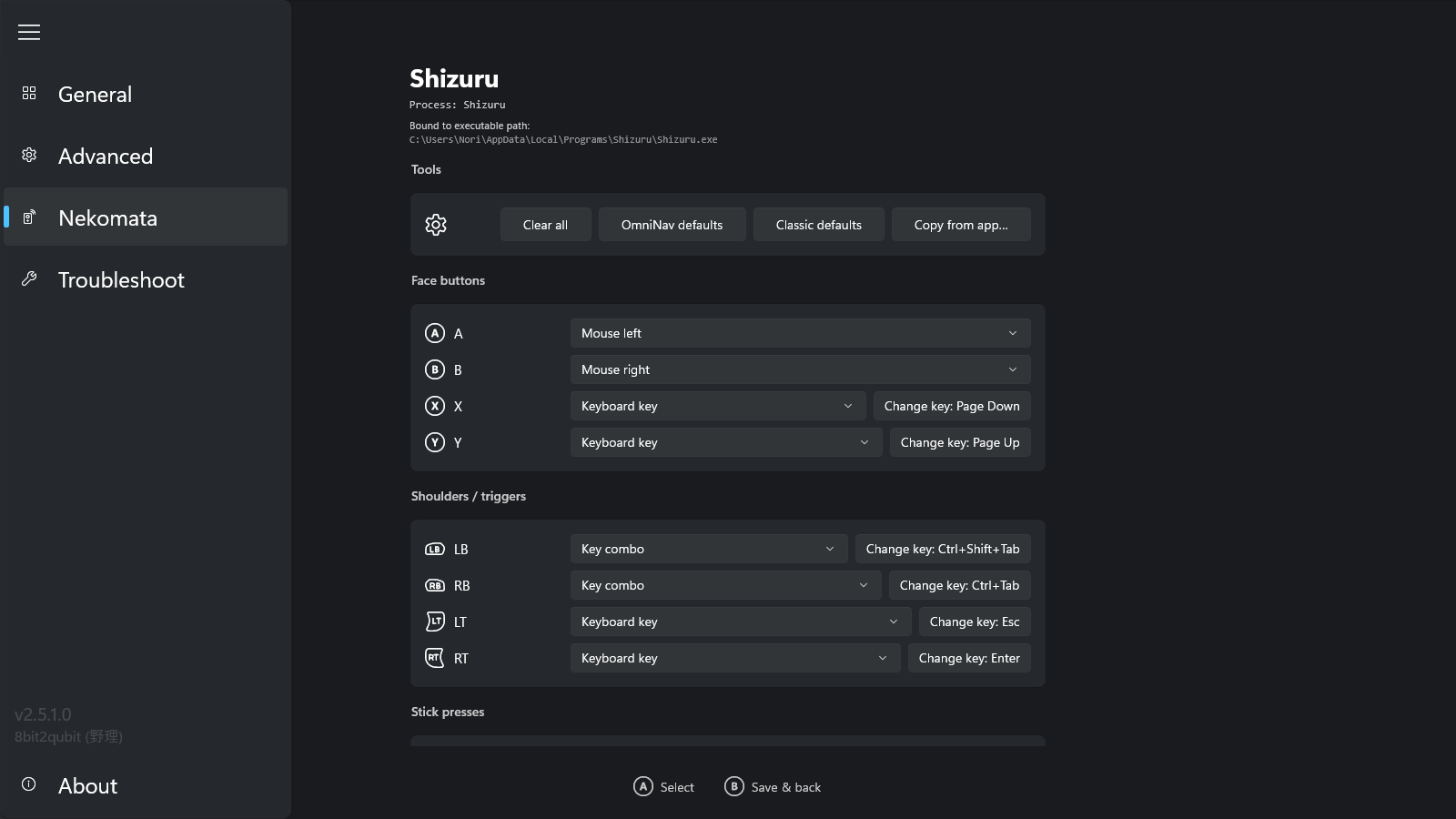
- Nekomata gamepad mapping is now bound to the executable path: two games that ship with the same executable name (for example, Steam and Epic versions of the same title, or two RPG Maker games both named
Game.exe) now keep separate gamepad mappings. The editor shows the bound executable path under the app name, and the Nekomata list and the “Copy from another app” picker show the parent folder name so you can tell same-name profiles apart.
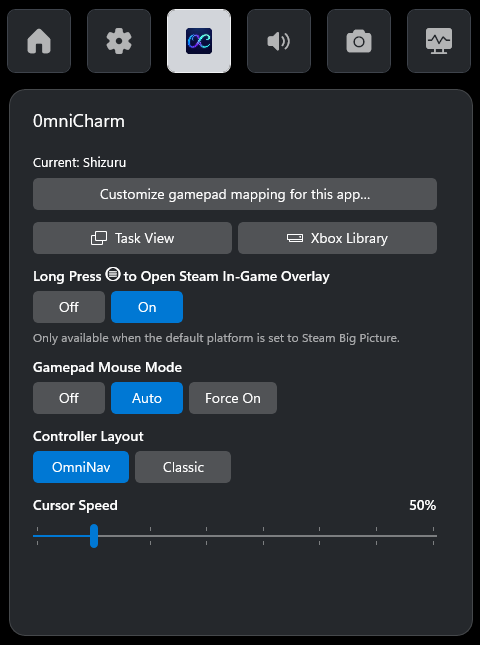
⚠️ Migration from v2.5.0.0: existing Nekomata profiles created in v2.5.0.0 are not bound to a path yet, so the gamepad mapping will not apply until you bind them. Open the app you previously customized, then on the OmniCharm widget tap Customize gamepad mapping for this app… and press Save and return in the editor. The current executable path is recorded and the mapping starts taking effect again.
✨ New Features (v2.5.0.0)
- Nekomata — per-app gamepad mapping: every app can have its own profile that remaps every XInput input (A/B/X/Y, LB/RB, LT/RT, LS/RS, D-pad, both sticks) to a keyboard key, modifier combo (Ctrl / Shift / Alt / Win), mouse button, scroll wheel, cursor movement, scrolling, arrow keys, or WASD — with a full keyboard catalog including F-keys, edit / navigation keys, symbols, numpad, and media keys.
- Edit a per-app mapping in one tap: the OmniCharm widget shows the foreground app at the top, with a "Customize gamepad mapping for this app…" button that opens Nekomata's editor for that app.
- Navigation Sounds: optional sound feedback when navigating the UI. Toggle from Advanced settings.
🎮 Gamepad Mouse Mode Cheat Sheet
| Button | OmniNav | Classic |
|---|---|---|
| Left Stick | Cursor | Scroll |
| Right Stick | Scroll | Cursor |
| A | Left Click | Enter |
| B | Right Click | Esc |
| X | Page Down | Page Down |
| Y | Page Up | Page Up |
| LB | Ctrl+Shift+Tab | Tab |
| RB | Ctrl+Tab | Left Click |
| LT | Esc | Shift+Tab |
| RT | Enter | Right Click |
| LS | Shift+Tab | — |
| RS | Tab | — |
| D-pad | Arrow Keys (hold to repeat) | Arrow Keys (hold to repeat) |
- Three states: Off (disabled) · Auto (Edge, Chrome, Firefox, Opera, Brave, Epic Games Store, File Explorer, Steam, Discord) · Force On (all apps).
- Toggleable via the OmniCharm Game Bar widget.
- Gamepad Mouse Mode is auto-disabled on ROG Ally family — devices with built-in gamepad mapping.
🎮 Gamepad Steam Shortcuts

| Button | Action |
|---|---|
| ⧉ (short press) | Open Steam menu¹ |
| ⧉ (long press) | Open Quick Access menu¹ |
| ☰ (long press) | Open Steam In-Game Overlay²˒³ |
¹ In Steam Big Picture ² In-game ³ Toggleable via the OmniCharm Game Bar widget
🛠️ Installation Instructions
Download OmniConsole_2.5.1.0_x64.zip from the Assets below and extract it to any folder.
Option A: Install.bat (Recommended)
- Run
Install.bat. It will enable Developer Mode, install the certificate, install any missing framework dependencies, and install both MSIX packages automatically.
Option B: Manual Install
- [Critical] Go to Windows Settings → System → Advanced and enable Developer Mode.
- [Critical] Double-click
OmniConsole_2.5.1.0_x64.cer→ click Install Certificate → Store Location: Local Machine → Place all certificates in the following store → Browse → select Trusted People → Finish. (Skip this step if you already have the certificate installed) - (Optional — only needed on fresh/offline systems; online systems fetch these automatically) Double-click each file inside
Dependencies\to install the bundled framework packages (skip any that report an equal or newer version already installed). - Double-click
OmniConsole_2.5.1.0_x64.msixto install the main app. - Double-click
OmniConsole.PhantomLink_2.5.1.0_x64-widget.msixto install the OmniCharm widget.
⚙️ Prerequisites
- Windows 11 24H2 (Build 26100.7019)+ with Xbox Mode (FSE) enabled.
- OmniConsole requires the Full Handheld edition of Xbox Mode (FSE). Microsoft is gradually rolling out a Limited PC edition to regular PCs — use Xbox Full Screen Experience Tool (XFSET) to switch to the Full Handheld edition.
- Desktops, Laptops, Tablets & Handhelds without the Full Handheld edition: Run XFSET first.
- Native Handheld Devices (e.g., ROG Xbox Ally series): Already on the Full Handheld edition — install OmniConsole directly.
- Xbox Controller Required: Game Bar, Xbox Mode (FSE), and all gamepad features require an Xbox-compatible (XInput) controller with an Xbox button.
v2.5.1.0:貓又 — 綁定執行檔路徑的手把映射
🌐 前往官方網站 — 完整文件、功能介紹與安裝指南。
🔧 改進
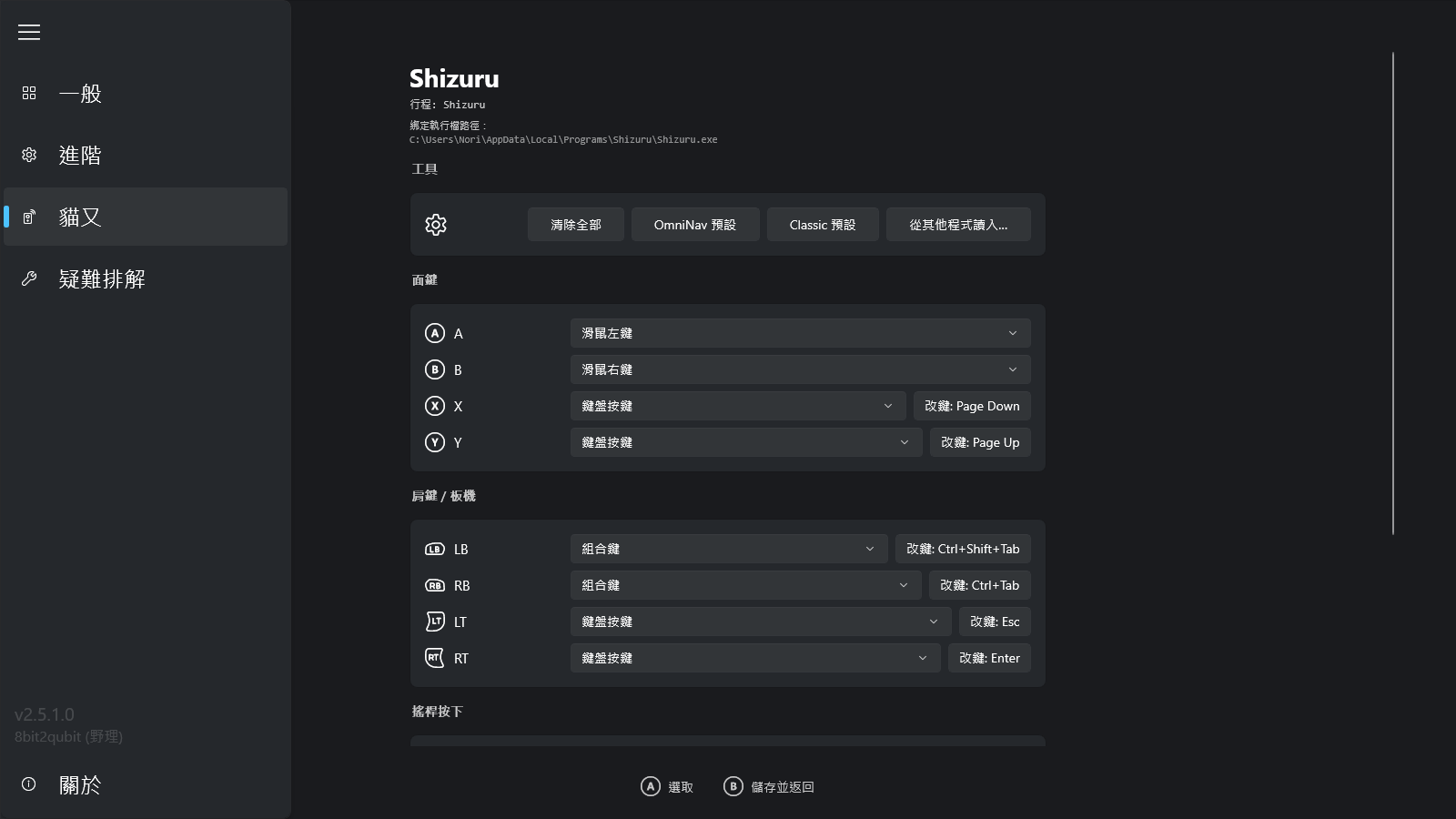
- 貓又手把映射改為綁定執行檔的完整路徑:檔名相同但分屬不同遊戲的程式(例如 Steam 與 Epic 版本的同名遊戲,或多款 RPG Maker 遊戲共用
Game.exe)現在會各自保留獨立的手把映射。編輯器在程式名稱下方顯示綁定的執行檔路徑;貓又清單與「從其他程式讀入」對話方塊則顯示上層資料夾名稱,以區分同名設定檔。
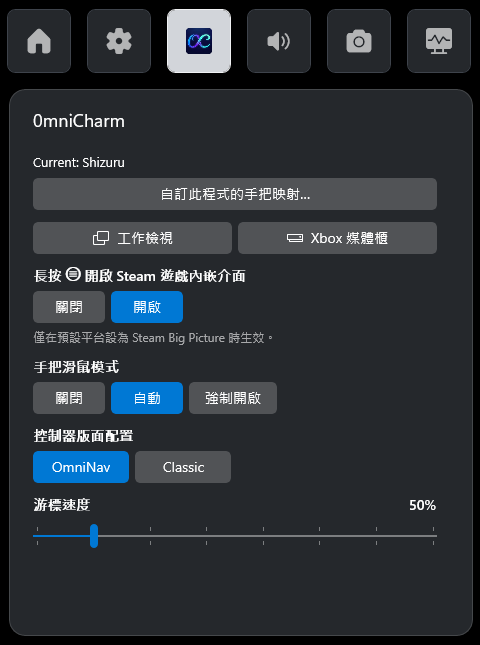
⚠️ 從 v2.5.0.0 升級:於 v2.5.0.0 建立的既有貓又設定檔尚未綁定路徑,手把映射不會生效。請開啟先前自訂過的程式,於 OmniCharm 小工具點選「自訂此程式的手把映射⋯」,並在編輯器按「儲存並返回」。當下的執行檔路徑即被記錄,映射隨即恢復作用。
✨ 新功能 (v2.5.0.0)
- 貓又 — 各程式手把映射:每個程式都可以有自己的配置,將所有 XInput 輸入位(A/B/X/Y、LB/RB、LT/RT、LS/RS、十字鍵、雙搖桿)重新映射為鍵盤按鍵、修飾鍵組合(Ctrl / Shift / Alt / Win + 鍵)、滑鼠按鍵、滾輪、游標移動、捲動、方向鍵或 WASD。鍵盤按鍵目錄涵蓋 F1–F24、編輯/導覽鍵、符號鍵、數字鍵盤與媒體鍵。
- 一鍵編輯目前程式的手把映射:OmniCharm 小工具頂部顯示前景程式,並提供「自訂此程式的手把映射…」按鈕,一鍵開啟該程式的貓又編輯器。
- 導覽音效:操作介面時可選的音效回饋。可在進階設定中開關。
🎮 手把滑鼠模式速查表

| 按鍵 | OmniNav | Classic |
|---|---|---|
| 左搖桿 | 游標 | 滾輪 |
| 右搖桿 | 滾輪 | 游標 |
| A | 滑鼠左鍵 | Enter |
| B | 滑鼠右鍵 | Esc |
| X | Page Down | Page Down |
| Y | Page Up | Page Up |
| LB | Ctrl+Shift+Tab | Tab |
| RB | Ctrl+Tab | 滑鼠左鍵 |
| LT | Esc | Shift+Tab |
| RT | Enter | 滑鼠右鍵 |
| LS | Shift+Tab | — |
| RS | Tab | — |
| 方向鍵 | 方向鍵(長按連發) | 方向鍵(長按連發) |
- 三種狀態:關閉(停用)· 自動(Edge、Chrome、Firefox、Opera、Brave、Epic Games Store、檔案總管、Steam、Discord)· 強制開啟(所有應用程式)。
- 可於 OmniCharm Game Bar 小工具切換。
- ROG Ally 家族自動停用手把滑鼠模式 —— 裝置具備內建手把映射。
🎮 手把 Steam 快捷鍵
| 按鍵 | 動作 |
|---|---|
| ⧉(短按) | 開啟 Steam 選單¹ |
| ⧉(長按) | 開啟快速存取選單¹ |
| ☰(長按) | 開啟 Steam 遊戲內嵌介面²˒³ |
¹ 於 Steam Big Picture 中 ² 遊戲中 ³ 可於 OmniCharm Game Bar 小工具切換
🛠️ 安裝說明
從下方 Assets 下載 OmniConsole_2.5.1.0_x64.zip 並解壓縮至任意資料夾。
方式 A:Install.bat(建議)
- 執行
Install.bat,將自動開啟開發人員模式、安裝憑證、補齊相依框架套件,並安裝兩個 MSIX 套件。
方式 B:手動安裝
- [重要] 前往 Windows 設定 → 系統 → 進階,啟用開發人員模式。
- [重要] 點兩下
OmniConsole_2.5.1.0_x64.cer→ 點選安裝憑證 → 存放區位置選擇本機電腦 → 將所有憑證放入以下的存放區 → 瀏覽 → 選擇受信任的人 → 完成。(若您之前已安裝過,則無需重複此步驟。) - (選用 — 僅全新/離線系統需要;連網系統會自動下載) 依序點兩下
Dependencies\中的檔案安裝相依框架套件(若顯示已安裝相同或更新版本可略過)。 - 點兩下
OmniConsole_2.5.1.0_x64.msix安裝主程式。 - 點兩下
OmniConsole.PhantomLink_2.5.1.0_x64-widget.msix安裝 OmniCharm 小工具。
⚙️ 前置條件
- Windows 11 24H2 (Build 26100.7019)+,且已啟用 Xbox 模式 (FSE) 功能。
- OmniConsole 需要完整掌機版的 Xbox 模式 (FSE)。Microsoft 正逐步將受限 PC 版推送至一般 PC,請使用 Xbox Full Screen Experience Tool (XFSET) 切換至完整掌機版。
- 桌機、筆電、平板及未取得完整掌機版的掌機:請先執行 XFSET。
- 原生掌機裝置(如 ROG Xbox Ally 系列):原廠即為完整掌機版,可直接安裝 OmniConsole。
- 需要 Xbox 手把:Game Bar、Xbox 模式 (FSE) 以及所有手把功能皆需使用具備 Xbox 按鈕的 XInput 相容控制器。
Full Changelog: v2.5.0.0...v2.5.1.0