
v2.0.0.0: About Page & Environment Snapshot
🌐 Official Website — documentation, features overview, and installation guide.
✨ New Features
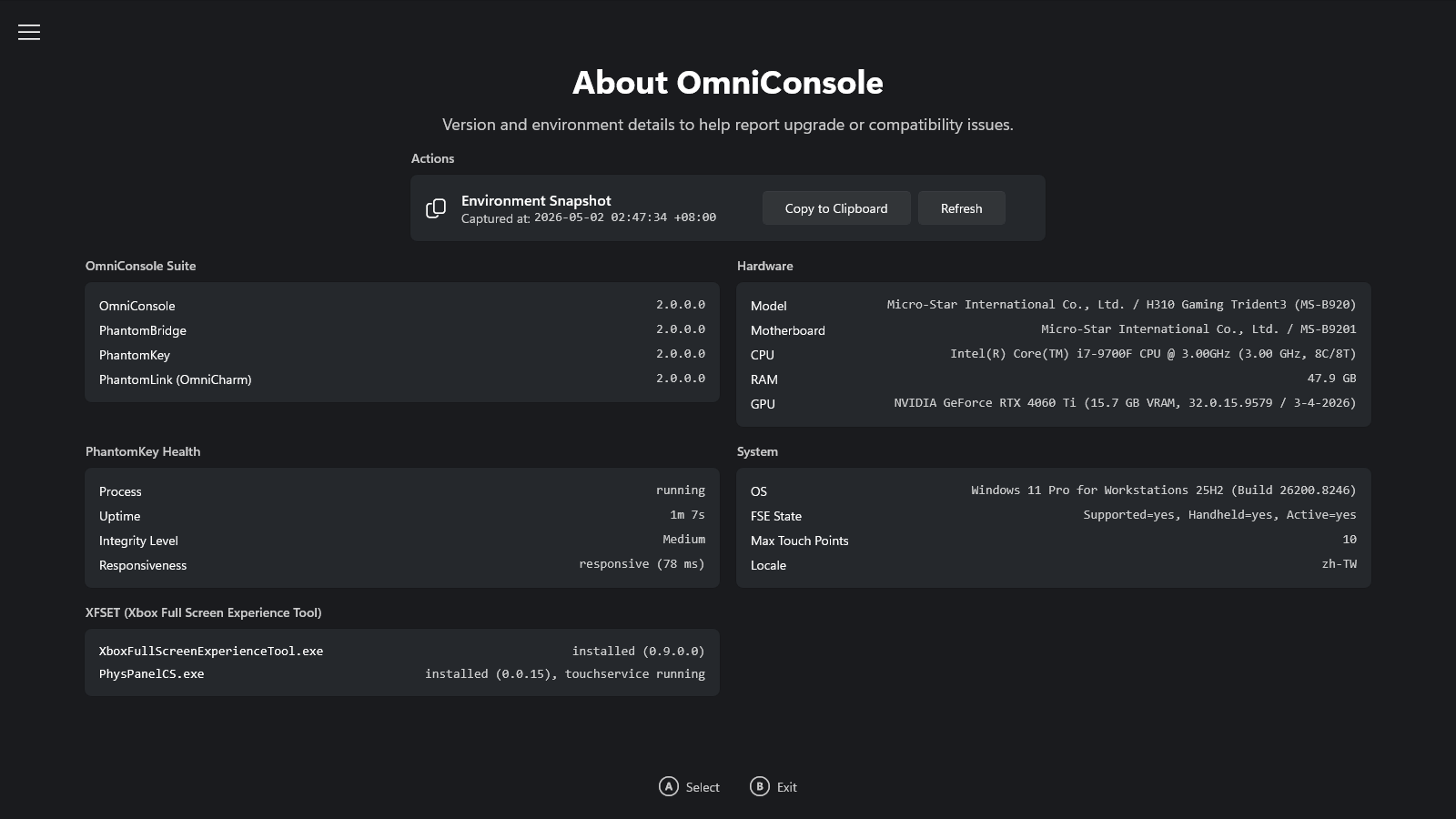
- About page with one-click Environment Snapshot (#12): Captures OmniConsole Suite component versions, PhantomKey runtime health, XFSET tool-chain status, full hardware, and OS environment. Copy to Clipboard outputs a Markdown report ready to paste into a GitHub Issue.
- PhantomKey self-healing (#12): OmniConsole detects unhealthy PhantomKey instances (frozen, stuck, or an older build) and recovers them by terminating and restarting PhantomKey automatically (deploying the new build first if an older version is detected), so a stale process can no longer interfere with input handling.
🔧 Improvements
- Gamepad Mouse Mode now works across all desktop Steam screens: PhantomKey now reliably tells desktop Steam apart from Big Picture, so windows like About Steam, Friends List, and Steam Settings all benefit from Auto / Force On mouse mode.
- Steam In-Game Overlay row in OmniCharm rebuilt as
[Off] [Trigger] [On]: the trigger button now sits between the two toggles, so it is always one D-pad step away from whichever toggle currently has focus. Adjacent button spacing is also tightened when the trigger is hidden, keeping the visual rhythm consistent with the rest of the widget. - Gamepad button hints across the app use system gamepad glyphs: the hand-drawn letter chips on Launch and Settings pages have been replaced with Segoe Fluent Icons gamepad button symbols.
- Settings sub-pages share a unified card width with adaptive layout: Advanced, Troubleshoot, and About pages now use the same column width. The About page additionally adapts between a two-column layout on wide screens and a single-column layout on narrow screens, so it stays comfortable to read on both desktop monitors and handheld displays.
- OmniCharm widget hidden from custom platform pickers: the OmniCharm Game Bar widget can no longer be selected as a custom platform launch target. It is a widget with no standalone entry point, so picking it would silently fail.
- Two Game Bar advanced toggles removed from the Settings page: the Library Button Opens Settings and Direct to Platform switches are no longer shown. Both now always run at their safe defaults, regardless of any previously saved value. This guarantees the Game Bar Library button always reaches the OmniConsole Settings page. Since v1.9.0.0 the OmniCharm widget already offers a direct entry to the Xbox Library, so the toggles' original purpose has faded.
🎮 Gamepad Mouse Mode Cheat Sheet
| Button | OmniNav | Classic |
|---|---|---|
| Left Stick | Cursor | Scroll |
| Right Stick | Scroll | Cursor |
| A | Left Click | Enter |
| B | Right Click | Esc |
| X | Page Down | Page Down |
| Y | Page Up | Page Up |
| LB | Ctrl+Shift+Tab | Tab |
| RB | Ctrl+Tab | Left Click |
| LT | Esc | Shift+Tab |
| RT | Enter | Right Click |
| LS | Shift+Tab | — |
| RS | Tab | — |
| D-pad | Arrow Keys (hold to repeat) | Arrow Keys (hold to repeat) |
- Three states: Off (disabled) · Auto (Edge, Chrome, Firefox, Opera, Brave, Epic Games Store, File Explorer, Steam) · Force On (all apps).
- Toggleable via the OmniCharm Game Bar widget.
- Gamepad Mouse Mode is auto-disabled on ROG Ally family — devices with built-in gamepad mapping.
🎮 Gamepad Steam Shortcuts

| Button | Action |
|---|---|
| ⧉ (short press) | Open Steam menu¹ |
| ⧉ (long press) | Open Quick Access menu¹ |
| ☰ (long press) | Open Steam In-Game Overlay²˒³ |
¹ In Steam Big Picture ² In-game ³ Toggleable via the OmniCharm Game Bar widget
🛠️ Installation Instructions
Download OmniConsole_2.0.0.0_x64.zip from the Assets below and extract it to any folder.
Option A: Install.bat (Recommended)
- Run
Install.bat. It will enable Developer Mode, install the certificate, install any missing framework dependencies, and install both MSIX packages automatically.
Option B: Manual Install
- [Critical] Go to Windows Settings → System → Advanced and enable Developer Mode.
- [Critical] Double-click
OmniConsole_2.0.0.0_x64.cer→ click Install Certificate → Store Location: Local Machine → Place all certificates in the following store → Browse → select Trusted People → Finish. (Skip this step if you already have the certificate installed) - (Optional — only needed on fresh/offline systems; online systems fetch these automatically) Double-click each file inside
Dependencies\to install the bundled framework packages (skip any that report an equal or newer version already installed). - Double-click
OmniConsole_2.0.0.0_x64.msixto install the main app. - Double-click
OmniConsole.PhantomLink_2.0.0.0_x64-widget.msixto install the OmniCharm widget.
⚙️ Prerequisites
- Windows 11 24H2 (Build 26100.7019)+ with Full Screen Experience (FSE) enabled.
- Desktops, Laptops, Tablets & Handhelds without Native FSE: Use Xbox Full Screen Experience Tool to enable the Full Handheld FSE first. The Limited PC FSE that Windows ships by default is not sufficient — OmniConsole requires the Full Handheld edition.
- Native FSE Handheld Devices (e.g., ROG Xbox Ally series): FSE is natively supported. Install OmniConsole directly.
- Xbox Controller Required: Game Bar, FSE, and all gamepad features require an Xbox-compatible (XInput) controller with an Xbox button.
v2.0.0.0:關於頁與環境快照
🌐 前往官方網站 — 完整文件、功能介紹與安裝指南。
✨ 新功能
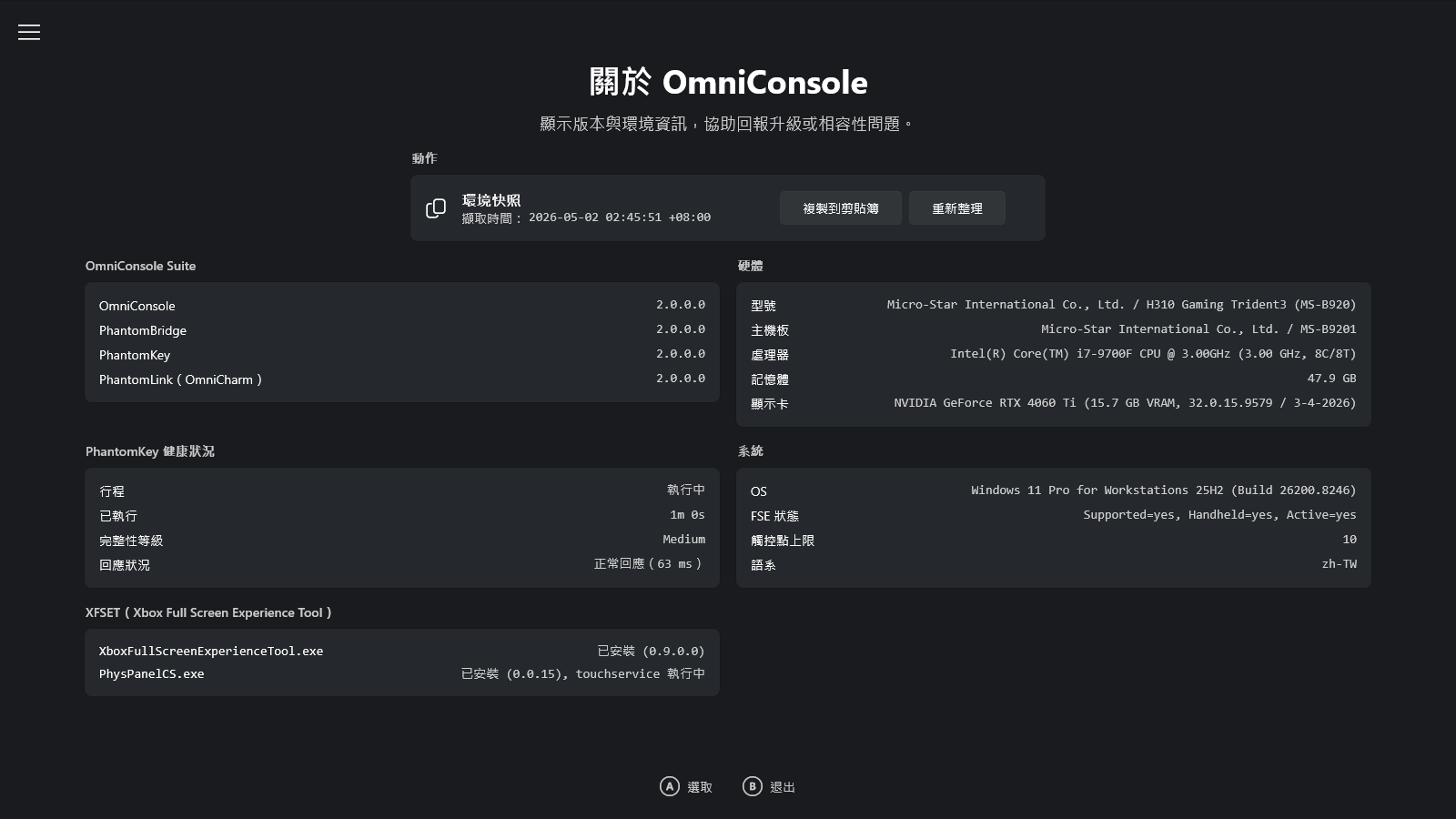
- 關於頁與一鍵環境快照 (#12):擷取 OmniConsole Suite 各元件版本、PhantomKey 執行健康狀況、XFSET 工具鏈狀態、完整硬體以及 OS 環境。一鍵複製到剪貼簿輸出 Markdown 格式報告,可直接貼到 GitHub Issue。
- PhantomKey 自癒 (#12):OmniConsole 偵測到 PhantomKey 實例不健康(凍結、卡住,或舊版)時,會自動終止並重新啟動 PhantomKey(發現舊版時會先部署新版),讓殘留行程不再干擾輸入處理。
🔧 改進
- 手把滑鼠模式現可在桌面 Steam 所有介面下運作:PhantomKey 現已能準確分辨桌面 Steam 與 Big Picture 模式,《關於 Steam》、《好友名單》、《Steam 設定》等視窗現皆可套用自動/強制開啟模式。
- OmniCharm 中 Steam In-Game Overlay 區重排為
[Off] [Trigger] [On]:觸發按鈕現居中,無論目前焦點在 Off 或 On,距離 Trigger 都只差一格 D-pad。Trigger 隱藏時相鄰按鈕間距同步收緊,與小工具其它區塊節奏一致。 - 全 App 手把按鍵提示改用系統手把字元:啟動頁與設定頁原本手繪的字母按鍵方塊改為 Segoe Fluent Icons 中的手把按鍵字元。
- 設定子頁卡片寬度統一並自適應版型:進階、疑難排解、關於三頁採同一欄寬。關於頁額外提供寬螢幕雙欄/窄螢幕單欄的自適應版型切換,桌機螢幕與掌機顯示器上閱讀都舒適。
- OmniCharm 小工具已排除於自訂平台選單之外:OmniCharm Game Bar 小工具不再出現在自訂平台啟動目標的可選清單中。它是無獨立啟動進入點的小工具,若被選取會靜默失敗。
- 設定頁兩個 Game Bar 進階開關已移除:「媒體櫃按鈕開啟設定」與「直接導向平台」兩個開關不再顯示。兩者一律以安全預設值運作,忽略過去儲存的設定值,確保 Game Bar 媒體櫃按鈕始終能進入 OmniConsole 設定介面。自 v1.9.0.0 起 OmniCharm 小工具已能直接進入 Xbox 媒體櫃,這兩個開關的原始用途已淡化。
🎮 手把滑鼠模式速查表

| 按鍵 | OmniNav | Classic |
|---|---|---|
| 左搖桿 | 游標 | 滾輪 |
| 右搖桿 | 滾輪 | 游標 |
| A | 滑鼠左鍵 | Enter |
| B | 滑鼠右鍵 | Esc |
| X | Page Down | Page Down |
| Y | Page Up | Page Up |
| LB | Ctrl+Shift+Tab | Tab |
| RB | Ctrl+Tab | 滑鼠左鍵 |
| LT | Esc | Shift+Tab |
| RT | Enter | 滑鼠右鍵 |
| LS | Shift+Tab | — |
| RS | Tab | — |
| 方向鍵 | 方向鍵(長按連發) | 方向鍵(長按連發) |
- 三種狀態:關閉(停用)· 自動(Edge、Chrome、Firefox、Opera、Brave、Epic Games Store、檔案總管、Steam)· 強制開啟(所有應用程式)。
- 可於 OmniCharm Game Bar 小工具切換。
- ROG Ally 家族自動停用手把滑鼠模式 —— 裝置具備內建手把映射。
🎮 手把 Steam 快捷鍵
| 按鍵 | 動作 |
|---|---|
| ⧉(短按) | 開啟 Steam 選單¹ |
| ⧉(長按) | 開啟快速存取選單¹ |
| ☰(長按) | 開啟 Steam 遊戲內嵌介面²˒³ |
¹ 於 Steam Big Picture 中 ² 遊戲中 ³ 可於 Game Bar OmniCharm 小工具切換開關
🛠️ 安裝說明
從下方 Assets 下載 OmniConsole_2.0.0.0_x64.zip 並解壓縮至任意資料夾。
方式 A:Install.bat(建議)
- 執行
Install.bat,將自動開啟開發人員模式、安裝憑證、補齊相依框架套件,並安裝兩個 MSIX 套件。
方式 B:手動安裝
- [重要] 前往設定 → 系統 → 進階,啟用開發人員模式。
- [重要] 點兩下
OmniConsole_2.0.0.0_x64.cer→ 點選安裝憑證 → 存放區位置選擇本機電腦 → 將所有憑證放入以下的存放區 → 瀏覽 → 選擇受信任的人 → 完成。(若您之前已安裝過,則無需重複此步驟。) - (選用 — 僅全新/離線系統需要;連網系統會自動下載) 依序點兩下
Dependencies\中的檔案安裝相依框架套件(若顯示已安裝相同或更新版本可略過)。 - 點兩下
OmniConsole_2.0.0.0_x64.msix安裝主程式。 - 點兩下
OmniConsole.PhantomLink_2.0.0.0_x64-widget.msix安裝 OmniCharm 小工具。
⚙️ 前置條件
- Windows 11 24H2 (Build 26100.7019)+,且已啟用全螢幕體驗 (FSE) 功能。
- 桌機、筆電、平板及未內建 FSE 的掌機:請先使用 Xbox Full Screen Experience Tool 啟用掌機完整版 FSE。Windows 預設提供的 PC 限制版 FSE 不足以執行 OmniConsole,必須是掌機完整版。
- 原生 FSE 掌機裝置(例如 ROG Xbox Ally 系列):已原生支援 FSE,可直接安裝 OmniConsole。
- 需要 Xbox 手把:Game Bar、FSE 以及所有手把功能皆需使用具備 Xbox 按鈕的 XInput 相容控制器。
Full Changelog: v1.9.0.0...v2.0.0.0