
v1.8.1.0: Steam In-Game Overlay Toggle in OmniCharm
🌐 Official Website — documentation, features overview, and installation guide.
✨ New Features
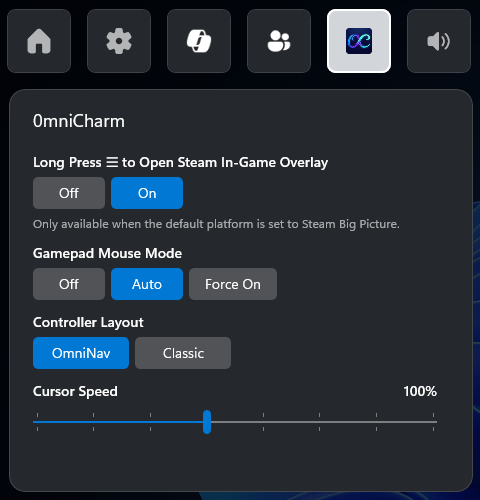
- Steam In-Game Overlay toggle in OmniCharm: A new Off/On button pair at the top of the widget toggles whether long-press ☰ opens Steam In-Game Overlay, without having to open the main app's advanced settings page. Useful when a game itself requires a long-press ☰ that conflicts with the overlay trigger. (#8)
🔧 Improvements
- Better gamepad focus in OmniCharm: Opening the widget with the A button no longer looks unfocused — the focus ring now lands directly on the currently-selected option.
- Widget pane resized: Height adjusted to fit the new Steam In-Game Overlay section. (Note: Windows caches the Game Bar widget size — if the new layout looks clipped after updating, please restart your PC, sign out and back in, or end the Game Bar process in Task Manager.)
🎮 Gamepad Mouse Mode Cheat Sheet
| Button | OmniNav | Classic |
|---|---|---|
| Left Stick | Cursor | Scroll |
| Right Stick | Scroll | Cursor |
| A | Left Click | Enter |
| B | Right Click | Esc |
| X | Page Down | Page Down |
| Y | Page Up | Page Up |
| LB | Ctrl+Shift+Tab | Tab |
| RB | Ctrl+Tab | Left Click |
| LT | Esc | Shift+Tab |
| RT | Enter | Right Click |
| LS | Shift+Tab | — |
| RS | Tab | — |
| D-pad | Arrow Keys (hold to repeat) | Arrow Keys (hold to repeat) |
- Three states: Off (disabled) · Auto (Edge, Chrome, Firefox, Opera, Brave, Epic Games Store, File Explorer, Steam) · Force On (all apps).
- Toggleable via the OmniCharm Game Bar widget.
- Gamepad Mouse Mode is auto-disabled on ROG Ally family — devices with built-in gamepad mapping.
🎮 Gamepad Steam Shortcuts

| Button | Action |
|---|---|
| ⧉ (short press) | Open Steam menu¹ |
| ⧉ (long press) | Open Quick Access menu¹ |
| ☰ (long press) | Open Steam In-Game Overlay²˒³ |
¹ In Steam Big Picture ² In-game ³ Toggleable via the OmniCharm Game Bar widget
🛠️ Installation Instructions
Download OmniConsole_1.8.1.0_x64.zip from the Assets below and extract it to any folder.
Option A: Install.bat (Recommended)
- Run
Install.bat. It will enable Developer Mode, install the certificate, install any missing framework dependencies, and install both MSIX packages automatically.
Option B: Manual Install
- [Critical] Go to Windows Settings → System → Advanced and enable Developer Mode.
- [Critical] Double-click
OmniConsole_1.8.1.0_x64.cer→ click Install Certificate → Store Location: Local Machine → Place all certificates in the following store → Browse → select Trusted People → Finish. (Skip this step if you already have the certificate installed) - (Optional — only needed on fresh/offline systems; online systems fetch these automatically) Double-click each file inside
Dependencies\to install the bundled framework packages (skip any that report an equal or newer version already installed). - Double-click
OmniConsole_1.8.1.0_x64.msixto install the main app. - Double-click
OmniConsole.PhantomLink_1.8.1.0_x64-widget.msixto install the OmniCharm widget.
⚙️ Prerequisites
- Windows 11 24H2 (Build 26100.7019)+ with Full Screen Experience (FSE) enabled.
- Desktops, Laptops, Tablets & Handhelds without Native FSE: Use Xbox Full Screen Experience Tool to enable FSE first.
- Native FSE Handheld Devices (e.g., ROG Xbox Ally series): FSE is natively supported. Install OmniConsole directly.
- Xbox Controller Required: Game Bar, FSE, and all gamepad features require an Xbox-compatible (XInput) controller with an Xbox button.
v1.8.1.0: OmniCharm 新增 Steam 遊戲內嵌介面開關
🌐 前往官方網站 — 完整文件、功能介紹與安裝指南。
✨ 新功能
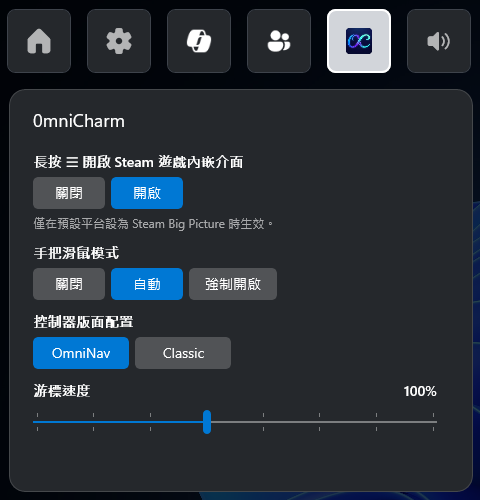
- OmniCharm 新增 Steam 遊戲內嵌介面開關:小工具最頂端新增開啟/關閉兩顆按鈕,可切換「長按 ☰ 開啟 Steam 遊戲內嵌介面」功能,不需再開啟主程式進階設定頁操作。適用於遊戲本身需要長按 ☰ 操作,會與此功能撞時的情境。(#8)
🔧 改進
- OmniCharm 手把焦點體驗更自然:以 A 鍵開啟小工具時不再出現失焦的視覺 — 焦點框會直接落在目前已選中的選項。
- Widget 尺寸調整:高度調整以容納新增的 Steam In-Game Overlay 區塊。(注意:Windows 會快取 Game Bar 小工具的尺寸 — 若更新後版面看起來被裁切,請重新開機、登出再登入、或在工作管理員中結束 Game Bar 行程。)
🎮 手把滑鼠模式速查表
| 按鍵 | OmniNav | Classic |
|---|---|---|
| 左搖桿 | 游標 | 滾輪 |
| 右搖桿 | 滾輪 | 游標 |
| A | 滑鼠左鍵 | Enter |
| B | 滑鼠右鍵 | Esc |
| X | Page Down | Page Down |
| Y | Page Up | Page Up |
| LB | Ctrl+Shift+Tab | Tab |
| RB | Ctrl+Tab | 滑鼠左鍵 |
| LT | Esc | Shift+Tab |
| RT | Enter | 滑鼠右鍵 |
| LS | Shift+Tab | — |
| RS | Tab | — |
| 方向鍵 | 方向鍵(長按連發) | 方向鍵(長按連發) |
- 三種狀態:關閉(停用)· 自動(Edge、Chrome、Firefox、Opera、Brave、Epic Games Store、檔案總管、Steam)· 強制開啟(所有應用程式)。
- 可於 OmniCharm Game Bar 小工具切換。
- ROG Ally 家族自動停用手把滑鼠模式 — 裝置具備內建手把映射。
🎮 手把 Steam 快捷鍵

| 按鍵 | 動作 |
|---|---|
| ⧉(短按) | 開啟 Steam 選單¹ |
| ⧉(長按) | 開啟快速存取選單¹ |
| ☰(長按) | 開啟 Steam 遊戲內嵌介面²˒³ |
¹ 於 Steam Big Picture 中 ² 遊戲中 ³ 可於 Game Bar OmniCharm 小工具切換開關
🛠️ 安裝說明
從下方 Assets 下載 OmniConsole_1.8.1.0_x64.zip 並解壓縮至任意資料夾。
方式 A:Install.bat(建議)
- 執行
Install.bat,將自動開啟開發人員模式、安裝憑證、補齊相依框架套件,並安裝兩個 MSIX 套件。
方式 B:手動安裝
- [重要] 前往設定 → 系統 → 進階,啟用開發人員模式。
- [重要] 點兩下
OmniConsole_1.8.1.0_x64.cer→ 點選安裝憑證 → 存放區位置選擇本機電腦 → 將所有憑證放入以下的存放區 → 瀏覽 → 選擇受信任的人 → 完成。(若您之前已安裝過,則無需重複此步驟。) - (選用 — 僅全新/離線系統需要;連網系統會自動下載) 依序點兩下
Dependencies\中的檔案安裝相依框架套件(若顯示已安裝相同或更新版本可略過)。 - 點兩下
OmniConsole_1.8.1.0_x64.msix安裝主程式。 - 點兩下
OmniConsole.PhantomLink_1.8.1.0_x64-widget.msix安裝 OmniCharm 小工具。
⚙️ 前置條件
- Windows 11 24H2 (Build 26100.7019)+,且已啟用全螢幕體驗 (FSE) 功能。
- 桌機、筆電、平板及未內建 FSE 的掌機:請先使用 Xbox Full Screen Experience Tool 啟用 FSE 功能。
- 原生 FSE 掌機裝置(例如 ROG Xbox Ally 系列):已原生支援 FSE,可直接安裝 OmniConsole。
- 需要 Xbox 手把:Game Bar、FSE 以及所有手把功能皆需使用具備 Xbox 按鈕的 XInput 相容控制器。
Full Changelog: v1.8.0.0...v1.8.1.0